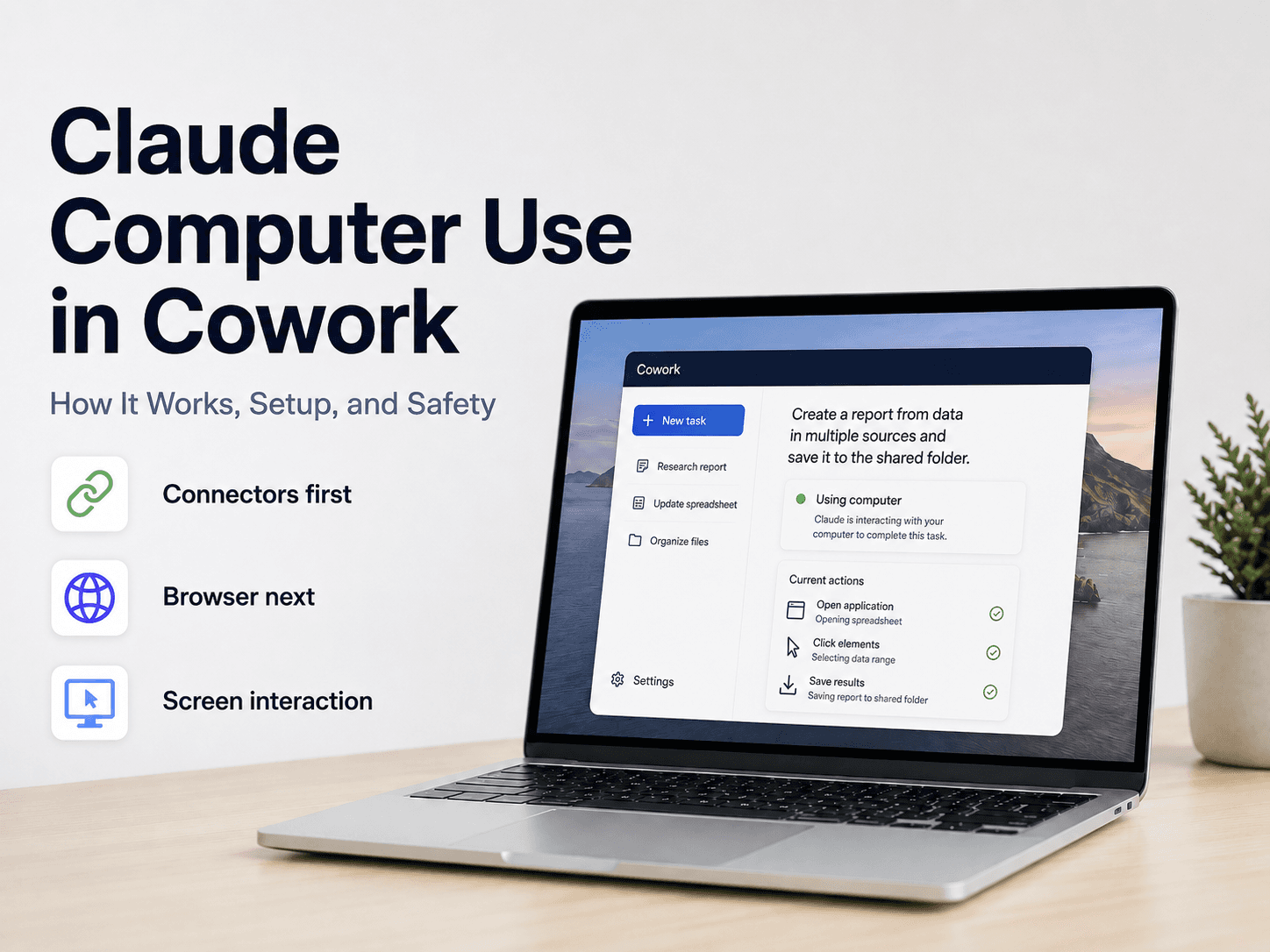
Claude is moving beyond chat-based assistance. With Computer Use, Claude can interact with your desktop by clicking, typing, opening applications, and navigating on-screen workflows.
But the important point is not simply that Claude can “control a computer.” Computer Use is designed as a fallback layer: Claude first tries a direct connector or browser-based tool, and only uses screen interaction when those options are unavailable or insufficient.
As of September 3, 2026, Computer Use is a research preview for Pro and Max users in the Claude Desktop application on macOS and Windows. Team and Enterprise plans do not have access to the feature at this time.
What Is Claude Computer Use in Cowork?
Claude Computer Use allows Claude to interact with applications on your computer in a way that resembles human desktop activity.
Depending on the task, Claude may be able to:
- Open desktop applications
- Click buttons and links
- Type into fields
- Scroll through interfaces
- Open and work with files
- Use development tools
- Interact with native applications that do not provide an API or connector
This expands the range of tasks Claude can perform. Instead of working only through chat, APIs, or supported integrations, Claude can sometimes operate software that is accessible only through a graphical interface.
How Computer Use Works
Claude follows a tool-selection hierarchy rather than using screen control by default.
1. Connectors Come First
If a connector is available, Claude uses it first. Anthropic gives Gmail, Google Drive, and Slack as examples.
A connector is usually faster and more reliable because Claude can work with structured data directly instead of interpreting a visual interface.
2. Browser-Based Work Comes Next
If there is no connector, Claude may use the browser built into the Claude Desktop application. It may also work through Chrome when Claude in Chrome is configured.
This approach is still more structured than controlling the entire desktop because the task remains inside a browser environment.
3. Screen Interaction Is the Broadest Option
When a connector or browser tool cannot complete the task, Claude can use Computer Use to interact directly with the screen.
This is the most flexible layer, but also the slowest and most error-prone. Claude has to interpret screenshots, identify interface elements, and decide what action to take next.
The Real Significance: Reach Versus Reliability
Computer Use matters because it gives AI agents access to the “long tail” of software: internal dashboards, proprietary tools, native applications, simulators, and older systems without modern integrations.
However, screen control does not make every task better.
A direct connector is generally preferable for structured work such as retrieving messages or searching a database. Computer Use becomes valuable when no direct integration exists.
This creates a practical rule:
Use the most structured tool available, and reserve Computer Use for tasks that nothing else can reach.
That distinction is important for both performance and safety. Computer Use increases Claude’s reach, but it also introduces more uncertainty because the agent is operating through a visual interface.
What Can Claude Do With Computer Use?
Anthropic lists several example workflows.
Create a Report From Multiple Sources
Claude can combine information from local files and connected services, then organize the results into a formatted report.
Test a Mobile Application
Developers can open a phone simulator, interact with an application, and look for potential user-experience problems.
Update a Spreadsheet
Claude can collect information from multiple sources, enter the data into a spreadsheet, apply formatting, and save the file to a shared folder.
Use Software Without an API
Computer Use can help Claude work with internal or specialized software that lacks a public API, command-line interface, or official connector.
How to Enable Claude Computer Use
Computer Use is turned off by default.
To enable it:
- Install or update the Claude Desktop application.
- Open Claude Desktop.
- Go to Settings > General under the Desktop app section.
- Turn on the Computer use toggle.
- Open Cowork or Claude Code.
- Ask Claude to perform a task involving an application on your computer.
- Approve access when Claude requests permission.
On macOS, Claude also requires Accessibility and Screen Recording permissions. Accessibility allows Claude to click, type, and scroll, while Screen Recording allows it to see the contents of your screen.
Does Your Computer Have to Stay On?
Only when the task is using Computer Use against your local desktop.
For local screen interaction to work, your computer must remain awake and the Claude Desktop application must stay open. If the computer sleeps or the application closes, Claude cannot continue controlling that desktop session.
This should not be confused with every Cowork task. Cowork can also run tasks in a cloud environment, and those tasks do not necessarily depend on your local screen remaining active. Local Computer Use is the part that requires an awake computer and an open desktop application.
Claude Desktop has a Linux beta, but Computer Use is not currently available in that Linux beta.?
On Linux, Claude can still work with supported files, connectors, and plugins, but it cannot directly click, type, or navigate desktop applications through Computer Use.
This means Linux support for Claude Desktop should not be confused with Linux support for Computer Use. The Computer Use research preview currently supports macOS and Windows.
What Permissions Does Claude Need?
Claude requests permission before accessing an application.
You can choose whether to allow or deny access, and Anthropic provides an application blocklist for restricting specific software. You can also stop Claude during a task if it begins taking an unexpected action.
Computer Use does not create a complete sandbox between Claude and your desktop. Once access is granted, Claude is interacting with the actual applications and screen that you approve.
That makes permission design an important part of using the feature. The question is not only “Can Claude complete this task?” but also “What is the smallest amount of access required?”
Safety and Privacy Considerations
Because Claude relies on screenshots and desktop interaction, it may be able to see information displayed inside approved applications.
This could include:
- Personal information
- Private messages
- Confidential documents
- Financial details
- Health-related information
- Information belonging to other people
Anthropic advises users to close sensitive applications and avoid giving Computer Use access to banking, healthcare, government, legal, and other high-risk systems.
Some sensitive applications, including investment, trading, and cryptocurrency platforms, are blocked by default. Anthropic also describes safeguards for detecting possible prompt injection and flagging risky on-screen content.
These safeguards reduce risk, but they do not eliminate it. Users should continue to monitor the session and restrict access to sensitive applications.
Where Computer Use Works Best
Computer Use is most useful when the task is:
- Repetitive
- Low risk
- Reversible
- Dependent on a graphical interface
- Difficult to complete through an API or connector
Good starting tasks include spreadsheet formatting, file organization, application testing, and research workflows that do not involve sensitive data.
It is a poor fit for tasks involving financial transactions, medical information, legal documents, government systems, or confidential data belonging to other people.
Current Limitations
Computer Use is still a research preview, so users should expect limitations:
- Complex multi-step workflows may require another attempt.
- Screen interaction is slower than direct connectors.
- Claude may struggle with unfamiliar or changing interfaces.
- Actions in one application can affect another application.
- The local computer must be awake when Claude is controlling it.
- The Claude Desktop application must remain open for local Computer Use.
- The feature is currently limited to Pro and Max plans.
- Local desktop support is currently limited to macOS and Windows.
A Practical Way to Use Claude Computer Use
A safer operating model is to divide tasks into three layers:
- Direct integrations for structured data and supported services.
- Browser automation for web-based tasks without a connector.
- Computer Use for native applications and interfaces that other tools cannot reach.
This approach keeps screen control as a targeted capability instead of treating it as the default way to automate everything.
Start with a low-risk task, grant access only to the required application, and ask Claude to pause before making an irreversible change.
FAQ
What is Claude Computer Use?
It is a research-preview feature that lets Claude interact with your desktop by clicking, typing, opening applications, and navigating your screen.
Which operating systems support Computer Use?
Computer Use currently supports macOS and Windows. Claude Desktop also has a Linux beta, but Computer Use is not available in the Linux beta at this time.
Does my computer need to stay awake?
Yes, when Claude is using Computer Use on your local desktop. The computer must remain awake and Claude Desktop must stay open. This requirement does not apply to every Cowork task running in a cloud environment.
Which plans include Computer Use?
The current help documentation lists Pro and Max plans. Team and Enterprise plans do not have access at this time.
Is it safe to use with sensitive applications?
Anthropic advises against using Computer Use with banking, healthcare, government, legal, investment, trading, cryptocurrency, or other highly sensitive applications. Users should limit permissions and monitor Claude’s actions.
Conclusion
Claude Computer Use in Cowork is best understood as a reach-expansion capability, not a replacement for connectors or APIs.
It allows Claude to work with applications that were previously outside the reach of many AI assistants. At the same time, screen-based interaction is slower, less predictable, and closer to the real trust boundary of your computer.
For that reason, the most effective approach is selective: use connectors for structured work, browsers for web workflows, and Computer Use for low-risk desktop tasks that require a graphical interface.