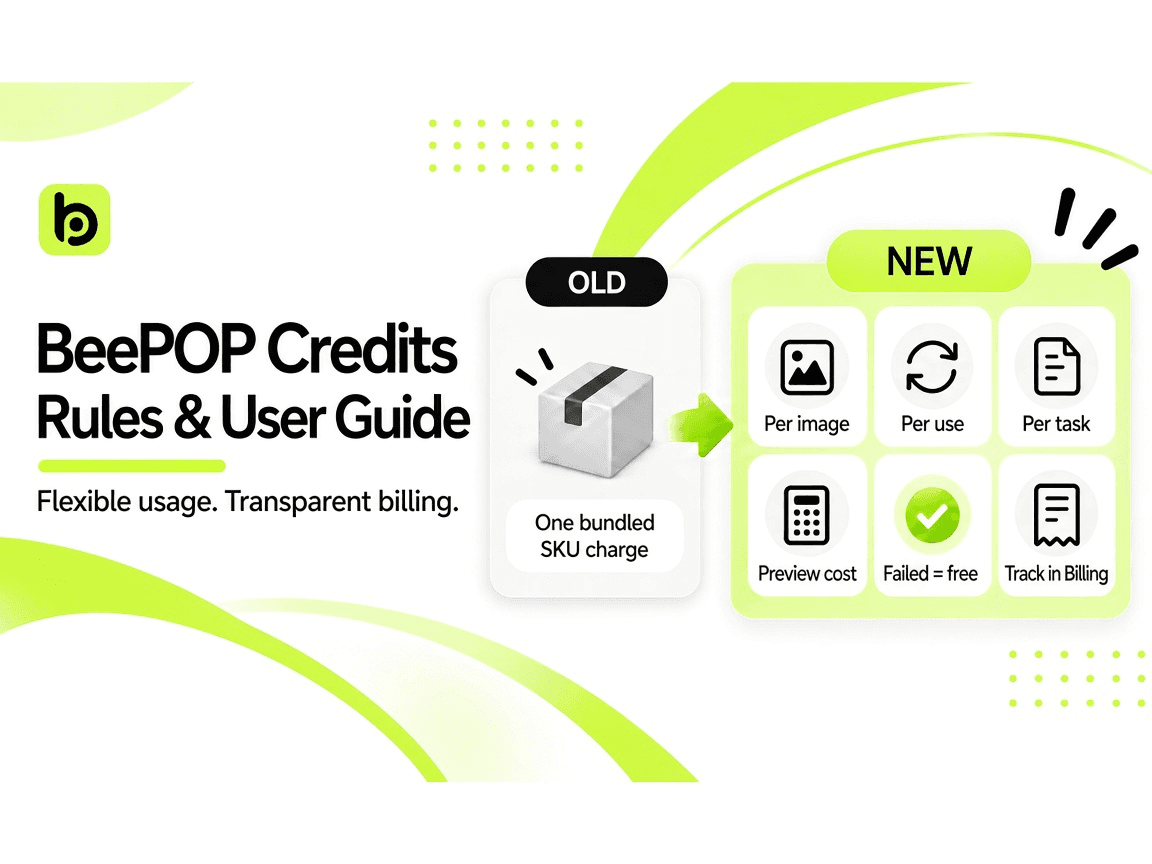
BeePOP has streamlined its credit system and workflow to make Listing creation more flexible and easier to track. This guide explains the rule changes, plan benefits, chargeable features, image-generation options, and billing process.
Plans & Subscription: https://beepop.ai/pricing
I. Why Did the Credit Rules Change?
Reduce unnecessary costs
Under the former model, an entire SKU project could be charged even when some images were not needed.
Support pay-as-you-use
You can now choose the features and image quantities you need. Credits are charged based on actual usage and successful results.
II. What Changed?
The new credit model replaces SKU-level billing with usage-based billing. Users can choose the features they need and clearly track how many Credits each operation consumes.
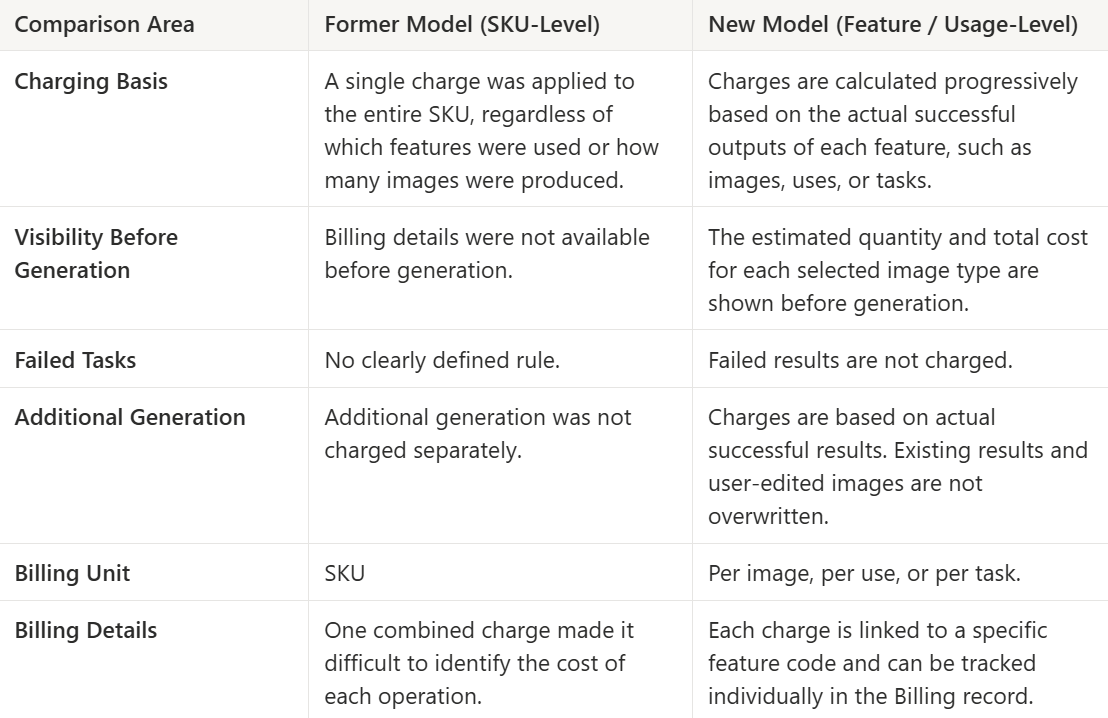
III. Plans and Subscription Benefits
The plan page shows current monthly prices and major benefits. Prices are in USD. Plan changes take effect immediately and can be canceled at any time.
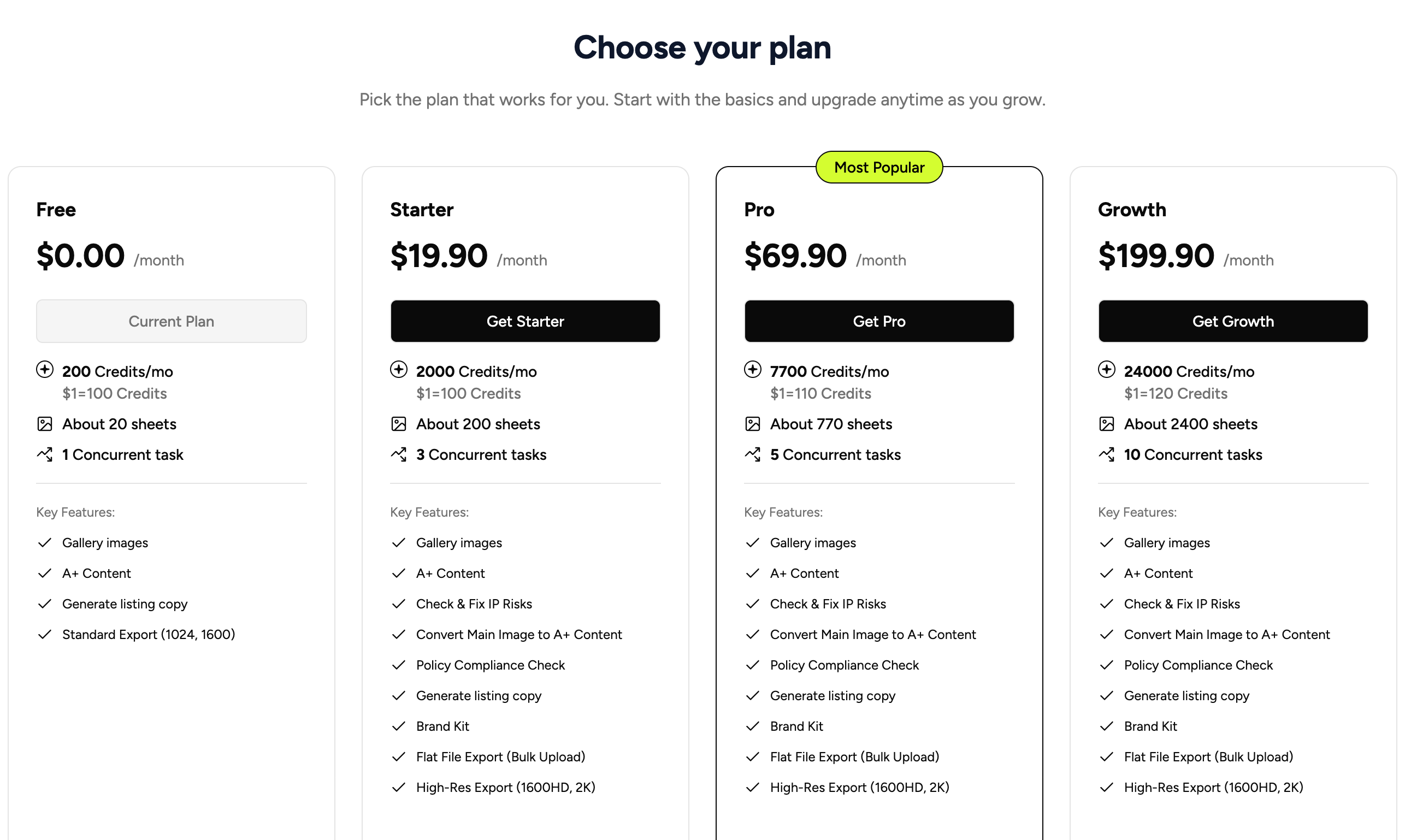
The “estimated images” figure is a rough estimate based on 10 Credits per image. Actual usage depends on the selected feature, successful outputs, and the Billing record.
Plan prices and benefits may change. Please refer to the latest information on the BeePOP Pricing page.
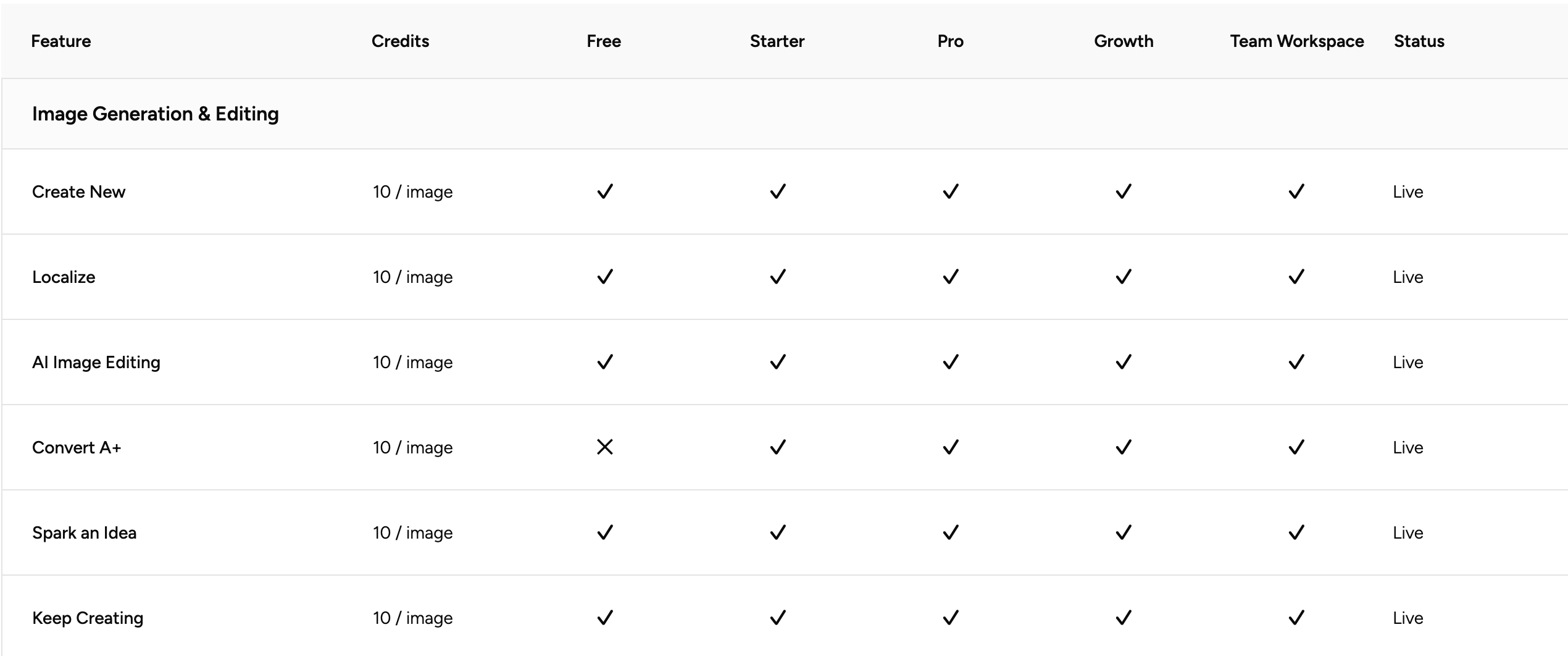
IV. What Can Credits Be Used For?
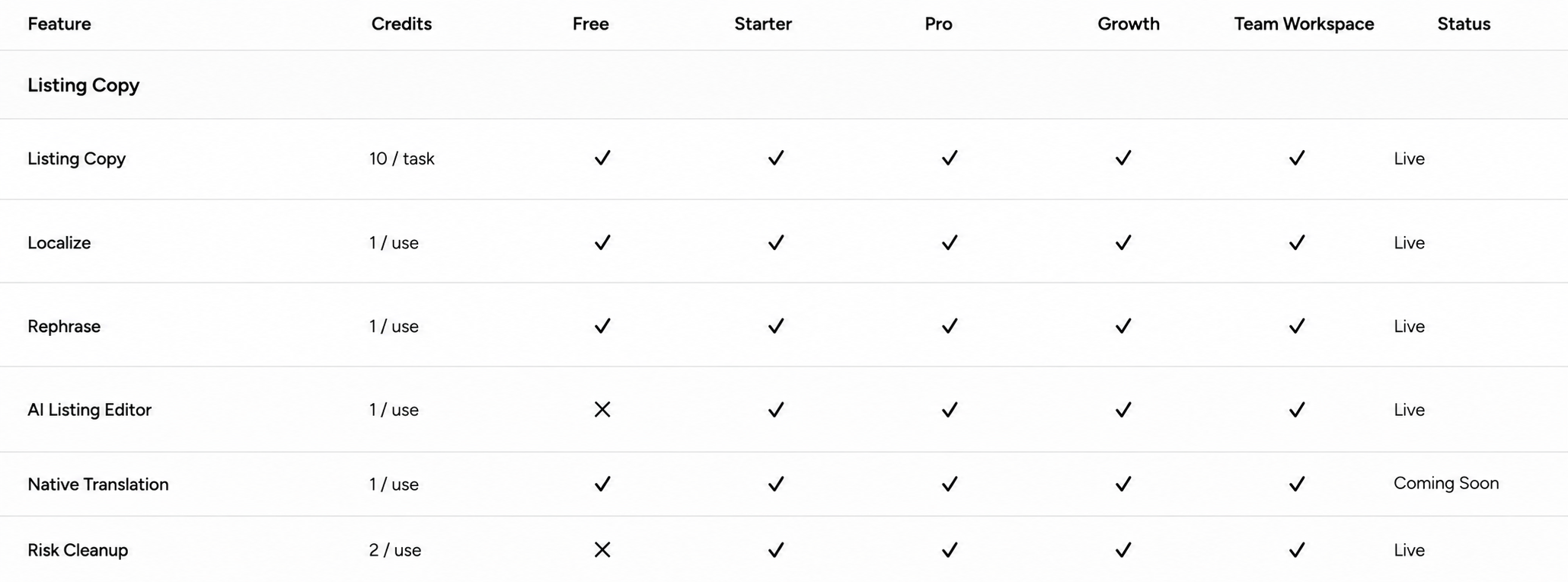
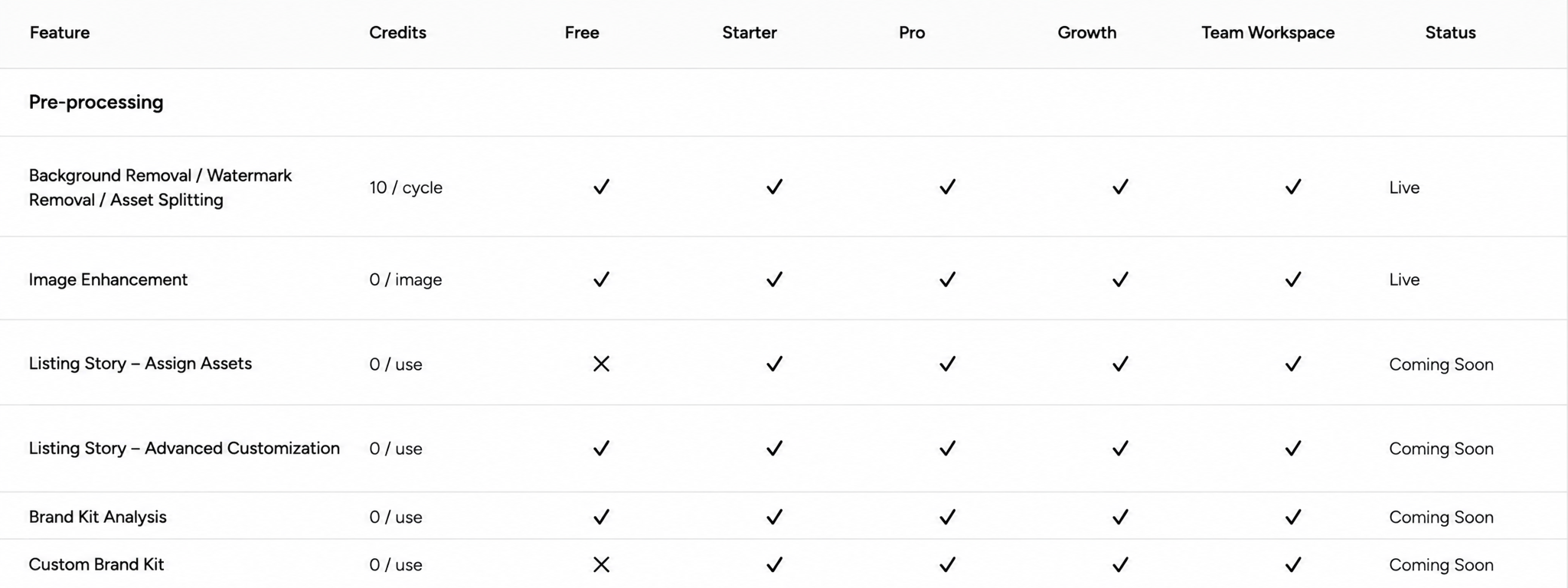
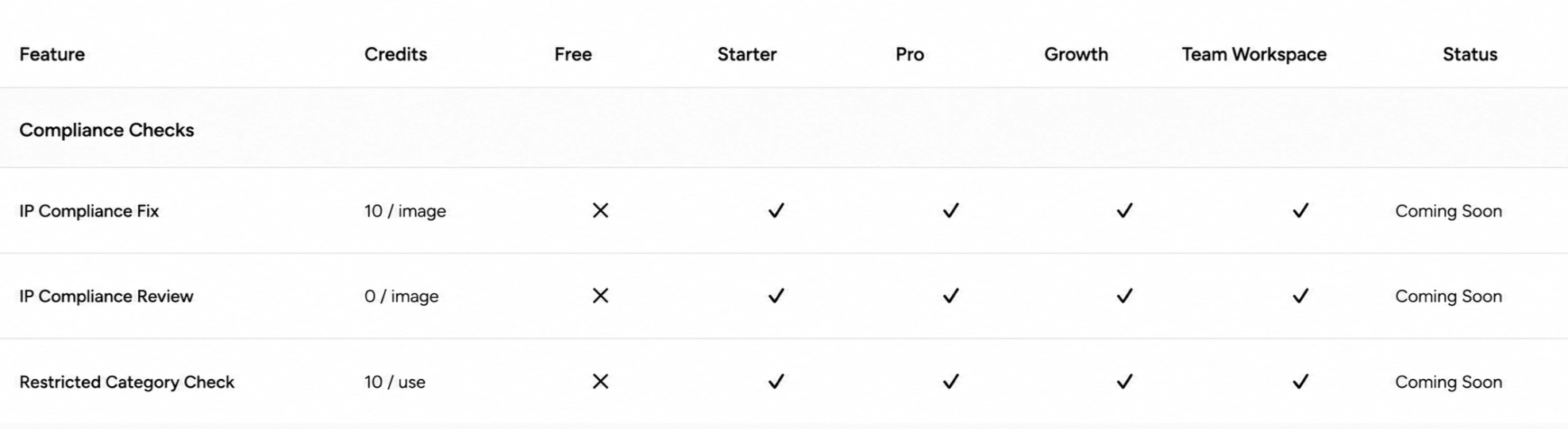
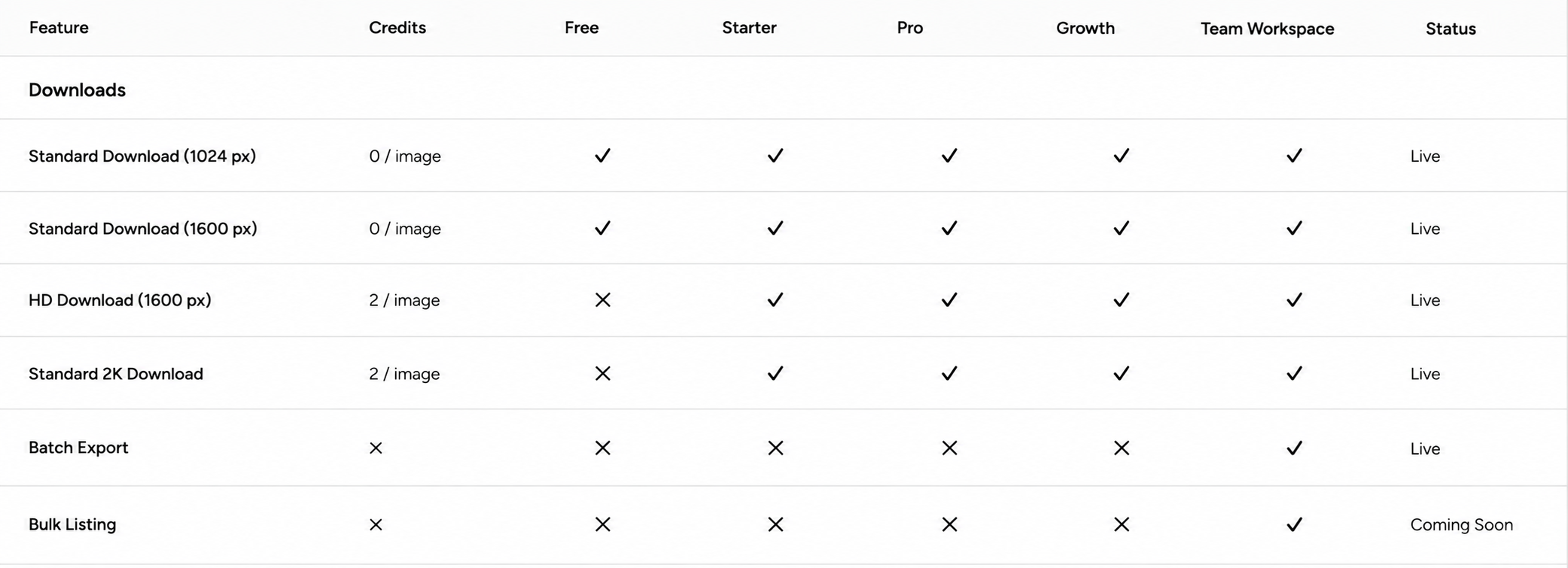
Credits may be used for image generation and editing, Listing copy, preprocessing, compliance checks, and enhanced downloads.
Image Generation & Editing
Listing Copy
Pre-processing
Compliance Checks
Downloads
V. How to Use Image-Generation Templates
Templates help you configure a complete image production set. You can use an official template or create a custom one, then adjust the quantities for main images, secondary images, and A+ content.
Official Templates
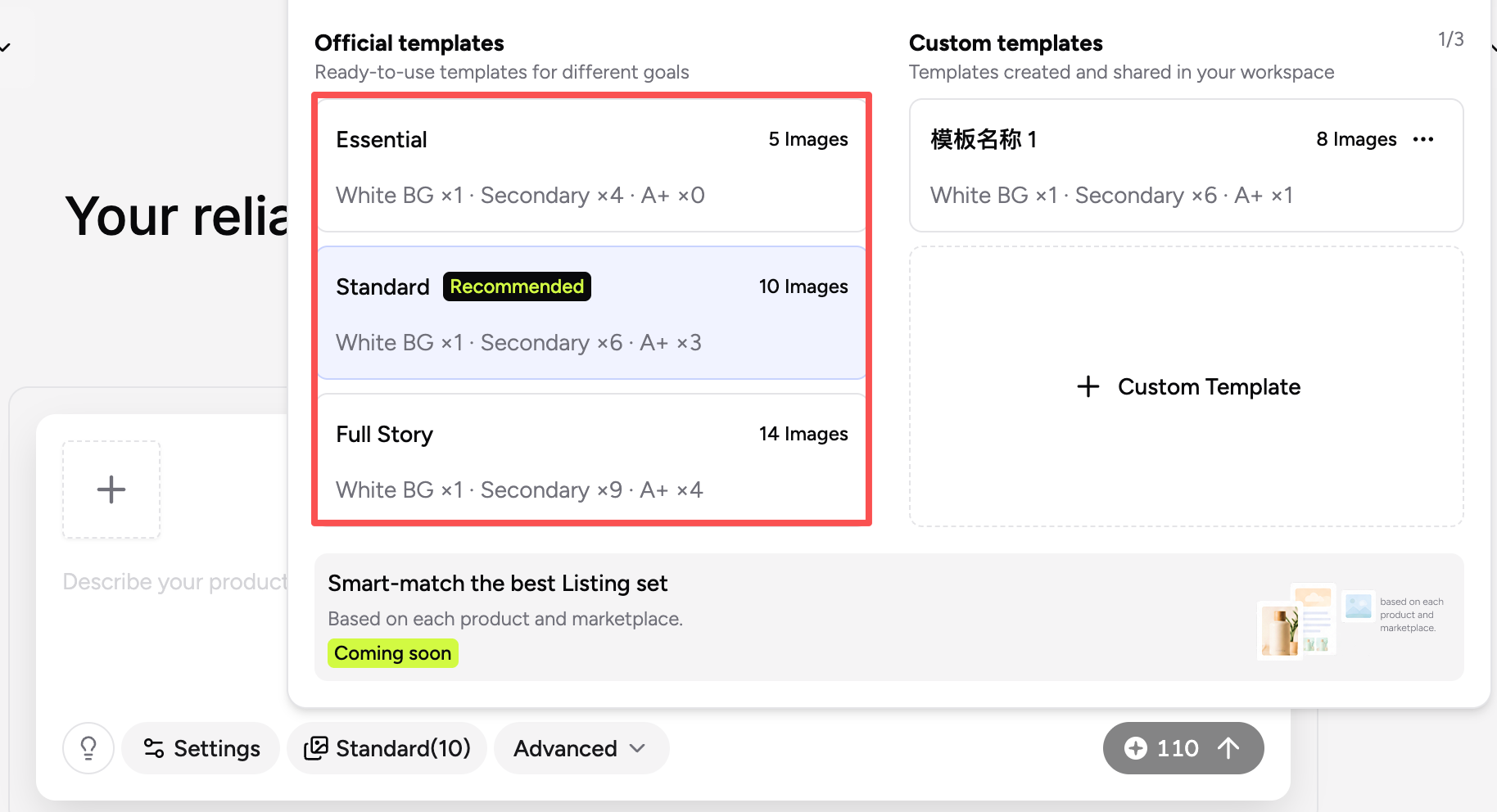
Official templates are ready-to-use presets:
- Economy: Lower cost and a fast basic Listing.
- Economy A+: Covers key selling points and adds A+ content.
- Premium: Provides a fuller presentation of product benefits and use cases.
You can use an official template directly or adjust it and save it as a custom template.
Custom Template Steps
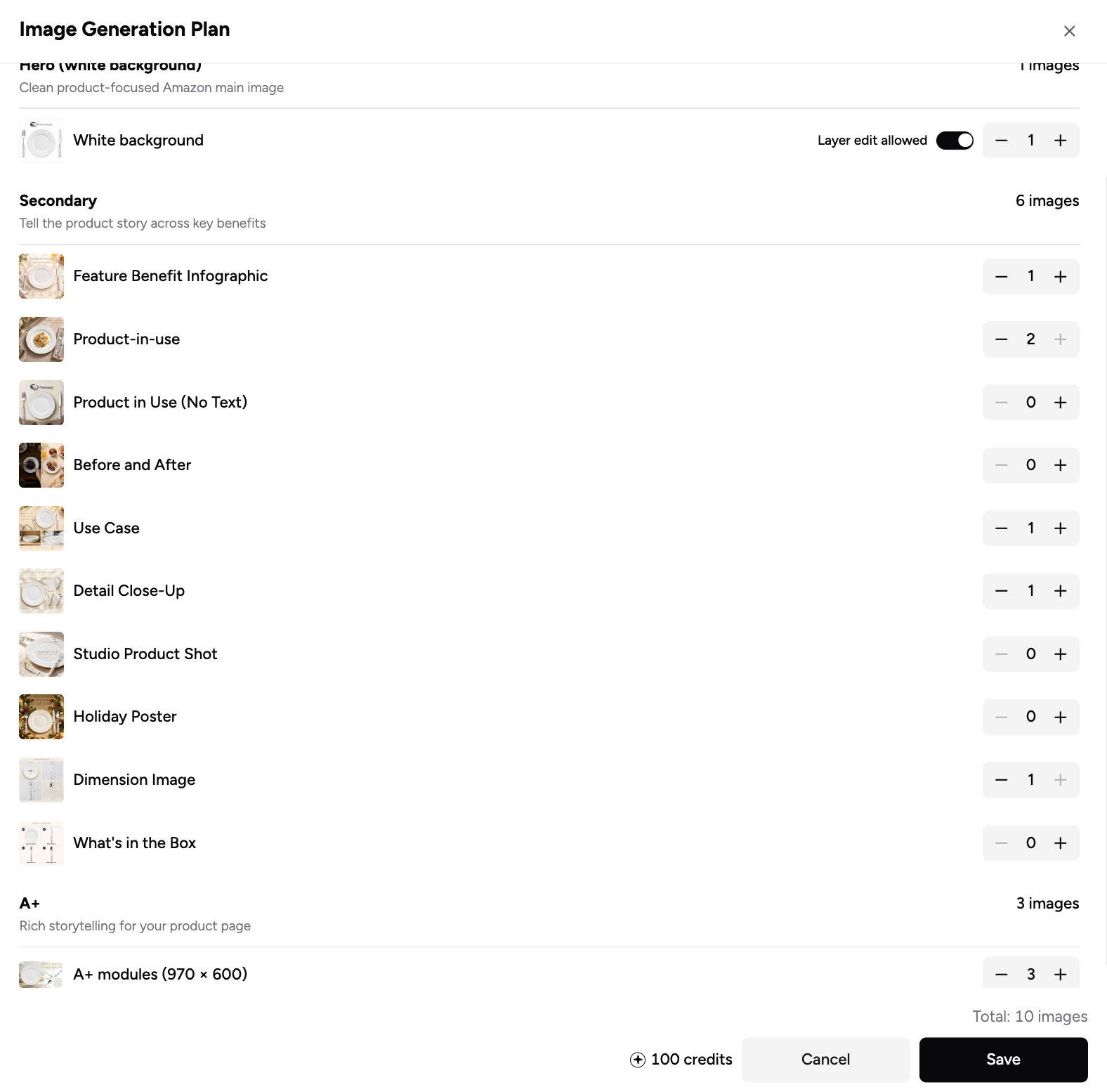
- Open Custom Template.
- Enter or edit the template name. The maximum length is 50 characters.
- Set the quantity for each image module.
- Use − to decrease the quantity and + to increase it.
- Set a module to 0 to exclude it from generation.
- Review the total image count and estimated Credits.
- Click Save to return to the generation workflow.
VI. How Are Credits Confirmed?
Before Generation
- Upload your assets and select the features you need.
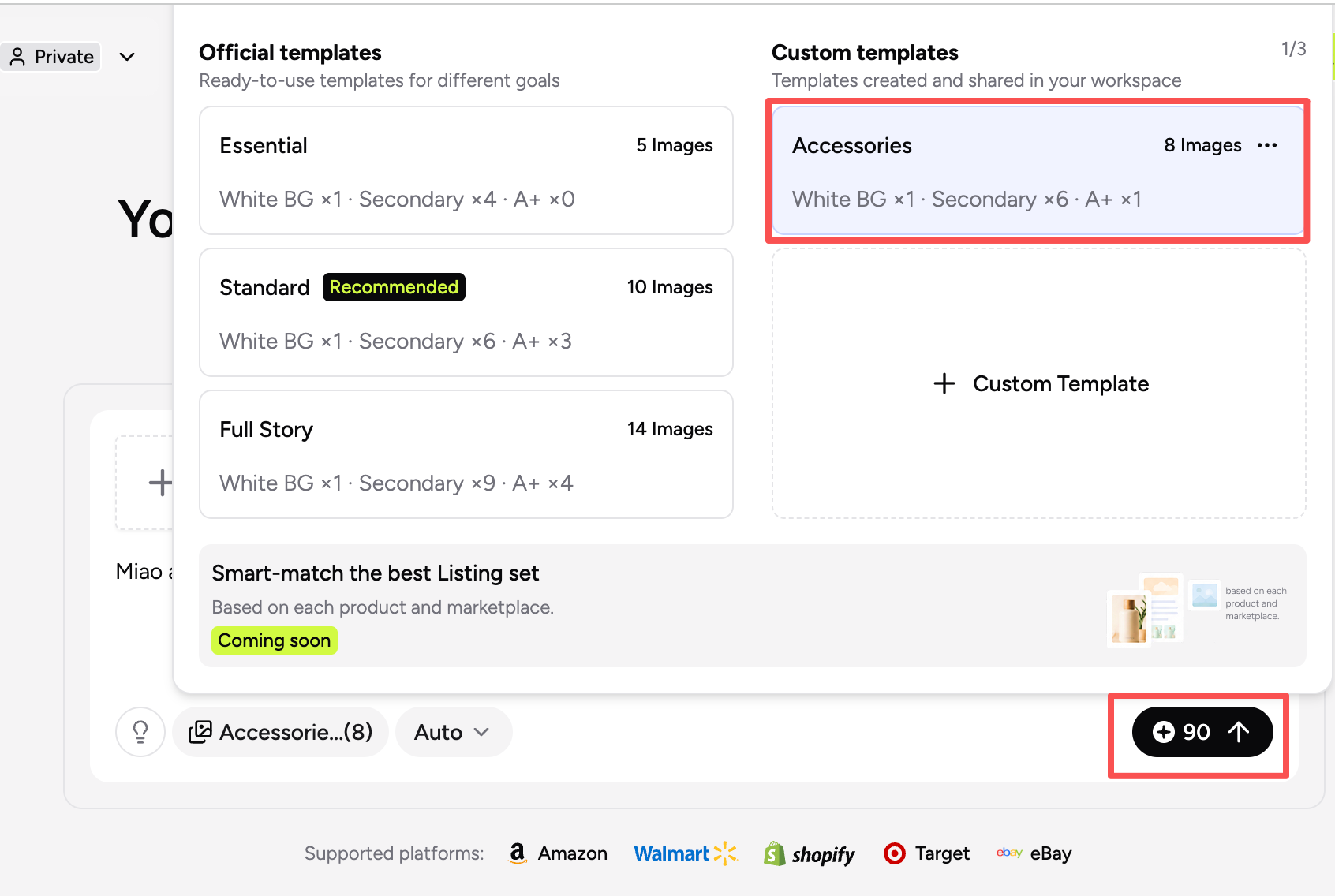
- Choose an official template or configure custom image modules and quantities.
- Review the total image count, estimated Credits, and available balance.
- Confirm the settings and start generation.
Additional generation will also display a new estimate before the task begins.
After Generation
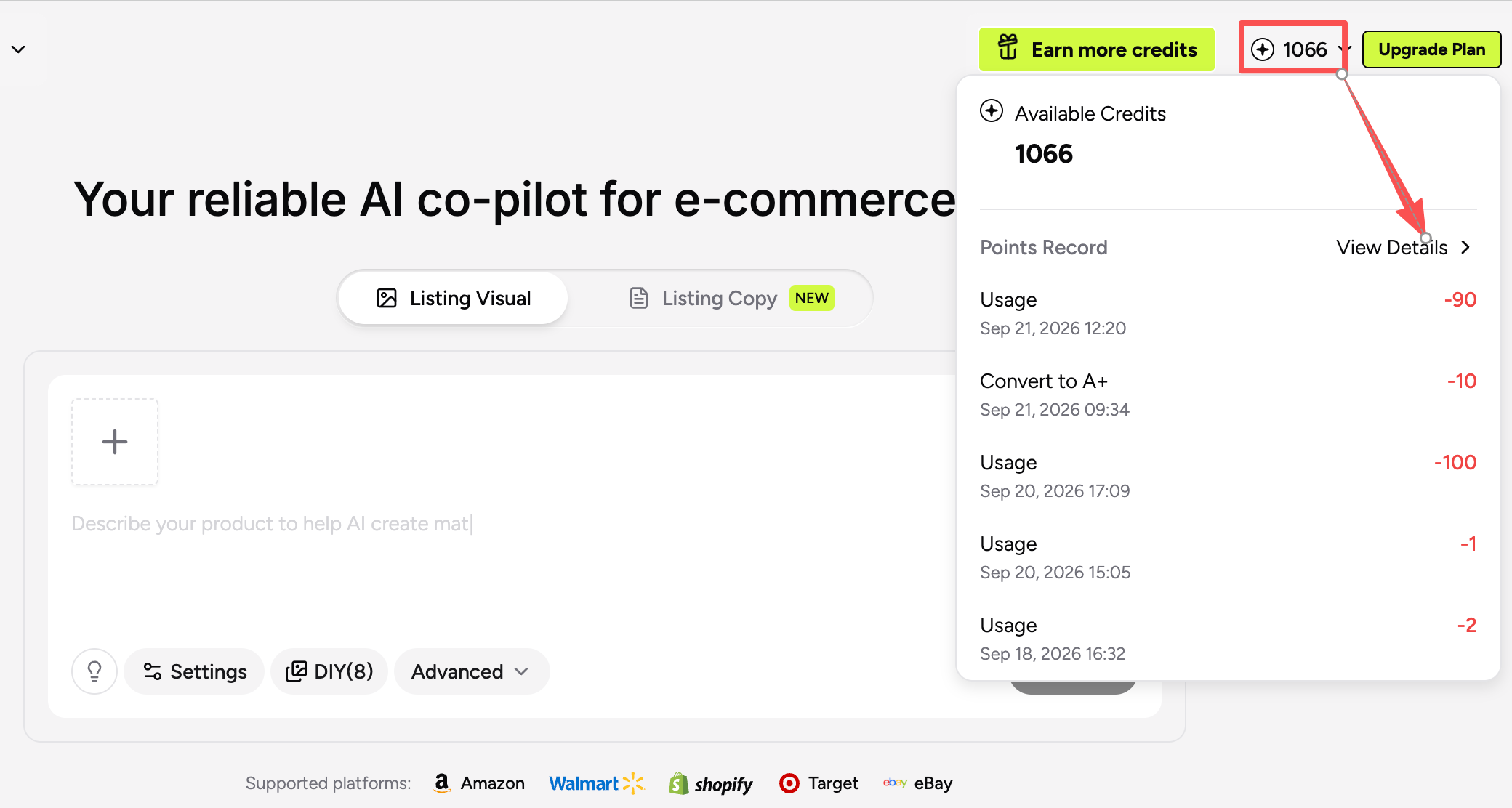
- Credits are deducted based on successful outputs.
- Failed results are not charged.
- Open Billing to review the actual charges for each feature.
VII. FAQ
Q1: Why is BeePOP no longer charging once per SKU?
Charges are now separated by feature and successful output. This allows you to choose only the content you need and track each charge in Billing.
Q2: Are failed generations charged?
No. Failed results are not charged. If a task is partially successful, only the successful results are billed.
Q3: Will additional generation overwrite existing content?
No. Additional generation only charges for new successful results. Existing images and edited content will not be overwritten.
Q4: Do downloads require Credits?
Standard 1024 and 1600 downloads are currently free. 1600 HD and 2K enhanced downloads are charged per image and require the relevant plan access. Please check the download button for the latest rule.
Q5: Will changing a template affect existing tasks?
No. Template changes apply only to new tasks. Existing and in-progress tasks keep the configuration saved when they were created.
Q6: Can I start a task if my balance is too low?
Please follow the balance and estimated-usage message shown before generation. If the system asks you to add Credits or upgrade your plan, complete the required step before starting the task.
Q7: What if the final charge differs from the estimate?
The estimate is provided for reference. Final billing is based on successful results and the Billing record. If anything appears incorrect, contact BeePOP Support with the relevant task and billing details.
For the latest plan prices, feature access, and subscription options, visit: https://beepop.ai/pricing
Product rules may change over time. If you have any questions, please contact BeePOP Support: hello@beepop.ai