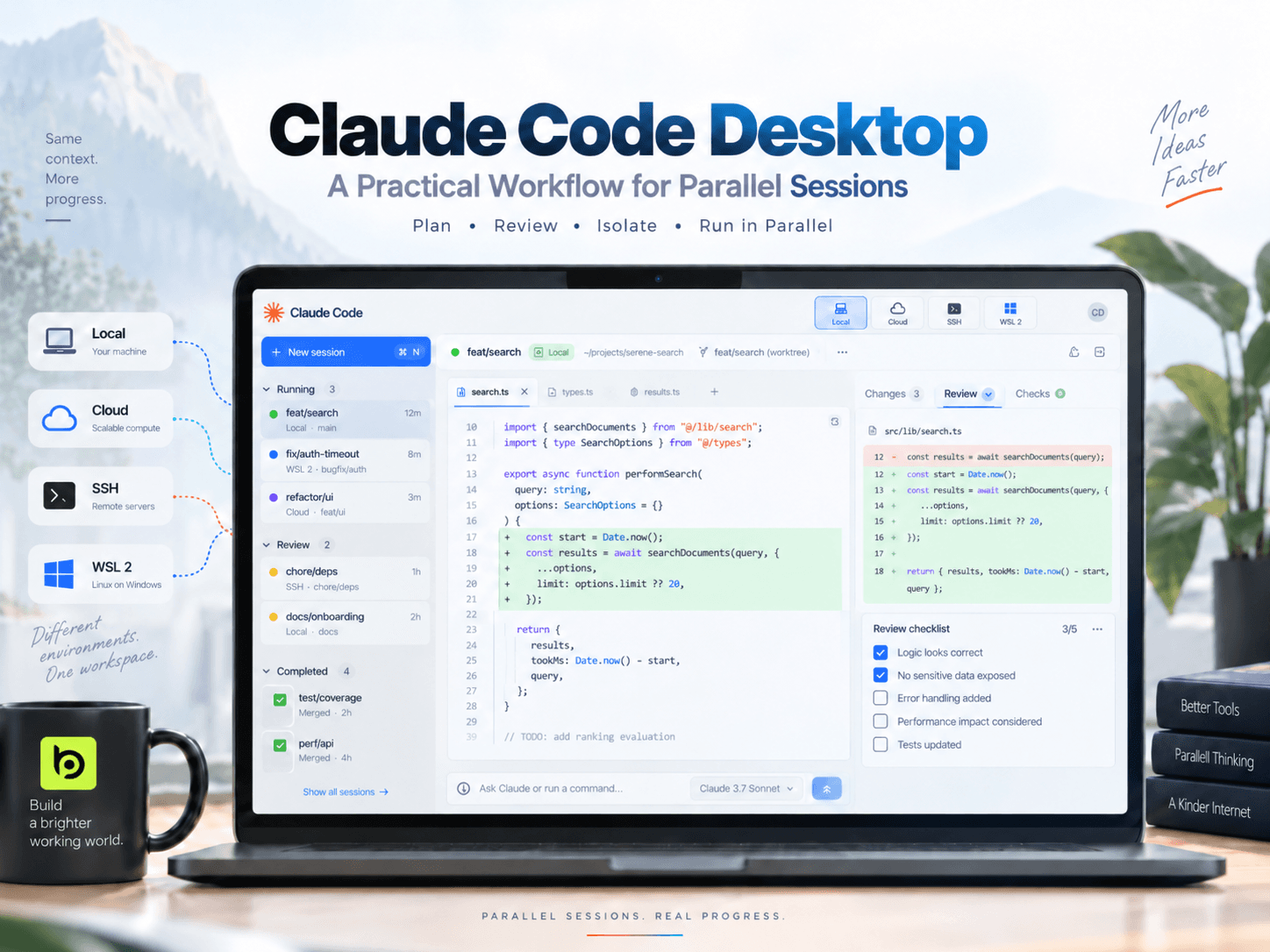
Claude Code Desktop gives developers a visual way to work with Claude on a project: choose a codebase, describe a task, and review the resulting changes. Its latest desktop updates also make it easier to start and track several sessions at once.
The useful question is not how many sessions you can open. It is which tasks can make progress independently, and how you will check their work. This guide covers a practical setup for Claude Code Desktop, including a prompt pattern and a simple way to organize parallel tasks.
What Claude Code Desktop Does
Claude’s desktop app has three tabs: Chat for general conversations, Cowork for longer agentic work, and Code for software development. In Code, Claude can read a selected project, edit files, run commands, and show changes in a diff view. The actions available depend on the permission mode you select.
The Code tab treats each conversation as a separate session. Sessions have their own history and project folder, and the sidebar lets you switch among them or run several in parallel. This is useful when a bug investigation, documentation task, and code review all need attention at the same time.
Start a Claude Code Desktop Session
- Install Claude Desktop and sign in. The Code tab requires a Pro, Max, Team, or Enterprise plan. Claude Code is included in the desktop app, so you do not need to install Node.js or the CLI just to use Code.
- Open Code and choose an environment. Select a project folder and decide where Claude should run: locally, in the cloud, over SSH, or in WSL 2 on Windows.
- Select a model and permission mode. Use Plan to review an approach before editing, Manual to approve changes and commands, or Accept edits to apply file changes with fewer prompts. Where available, Auto lets Claude work with fewer interruptions while checking potentially risky actions.
- Give the session a bounded task. State the outcome, the files or area in scope, constraints, and how you will judge completion.
- Review the diff. Check which files changed and whether the result meets your requirements before committing or sharing it.
Choose an environment where the project and its development tools are ready. A local session uses files on your computer; a cloud session can continue after you close the app; SSH connects to a remote machine; and WSL runs on the Linux side of a Windows setup.
A Practical Way to Split Work Across Sessions
Parallel sessions work best for tasks that do not need to edit the same files or wait for one another. Before opening several sessions, divide the work into three groups:
- Investigate: Find the cause of a bug or map the relevant code. Ask for findings without edits.
- Work independently: Update documentation, review a separate component, or analyze a failing test when those tasks do not depend on the investigation’s result.
- Do in sequence: Implement a fix that depends on another session’s findings. Start it after you have reviewed those findings.
For example, on an ecommerce site you could ask one session to inspect a mobile cart overflow without changing files, another to update the local development guide, and a third to examine a flaky checkout test and report likely causes. Once you understand the cart issue, start a focused fix session with the relevant findings. This keeps the initial work moving without asking multiple sessions to modify the same code at once.
Use a prompt contract for each session
Give each session a compact set of boundaries and a way to report back. For example:
Task: Fix the cart panel overflowing at a 375 px viewport.
Scope: Cart panel layout and responsive CSS.
Do not change: Checkout behavior, API calls, or shared design tokens.
Success check: No horizontal page scroll at 375 px; the cart remains usable at desktop width.
Report: List changed files, explain the fix, and note any checks you ran.
For an investigation session, replace “Fix” with “Inspect and report; do not edit files.” That instruction keeps discovery separate from implementation and makes the result easier to review.
Isolate sessions that may edit the same repository
If two sessions could touch overlapping files, use a separate Git worktree for one or both. A worktree gives each session an isolated project copy, reducing the chance that concurrent edits interfere. Isolation does not replace review: inspect each diff, decide which changes belong together, and then integrate them deliberately.
Use the sidebar as a triage list
The recent Claude Code Desktop update groups sessions by status, including those that need input, are working, and are complete. Check the “needs input” group first: those sessions may be waiting for a decision that is blocking progress. Then review completed sessions one at a time, checking their diffs and reports before accepting their work.
FAQ
Do I need the Claude Code CLI to use Claude Code Desktop?
No. Claude Code is included in the desktop app’s Code tab. The CLI is a separate option for terminal-based workflows.
Can Claude Code Desktop run sessions in parallel?
Yes. You can run separate sessions at the same time. Give each a distinct goal, and use Git worktrees when separate sessions may edit overlapping parts of a repository.
Which environment should I choose?
Choose Local when your code and tools are on your computer, Cloud when you want a session to continue after closing the app, SSH for a remote machine, or WSL 2 to run on the Linux side of Windows. The right choice is the environment where your project dependencies are available.
A Simple Rule for Reliable Parallel Work
Start with one session and a clear task. Add another only when its work can proceed independently or in an isolated worktree. Give every session a defined scope and success check, then review its diff before combining the result with the rest of your project. That is how Claude Code Desktop’s faster session setup and status view become a useful workflow, rather than just a busier sidebar.
Sources
- Get started with the Claude desktop app - Official setup instructions, supported plans, environments, and first-session walkthrough.
- Claude Code Desktop reference - Official details on sessions, permission modes, parallel work, Git worktrees, and reviewing changes.