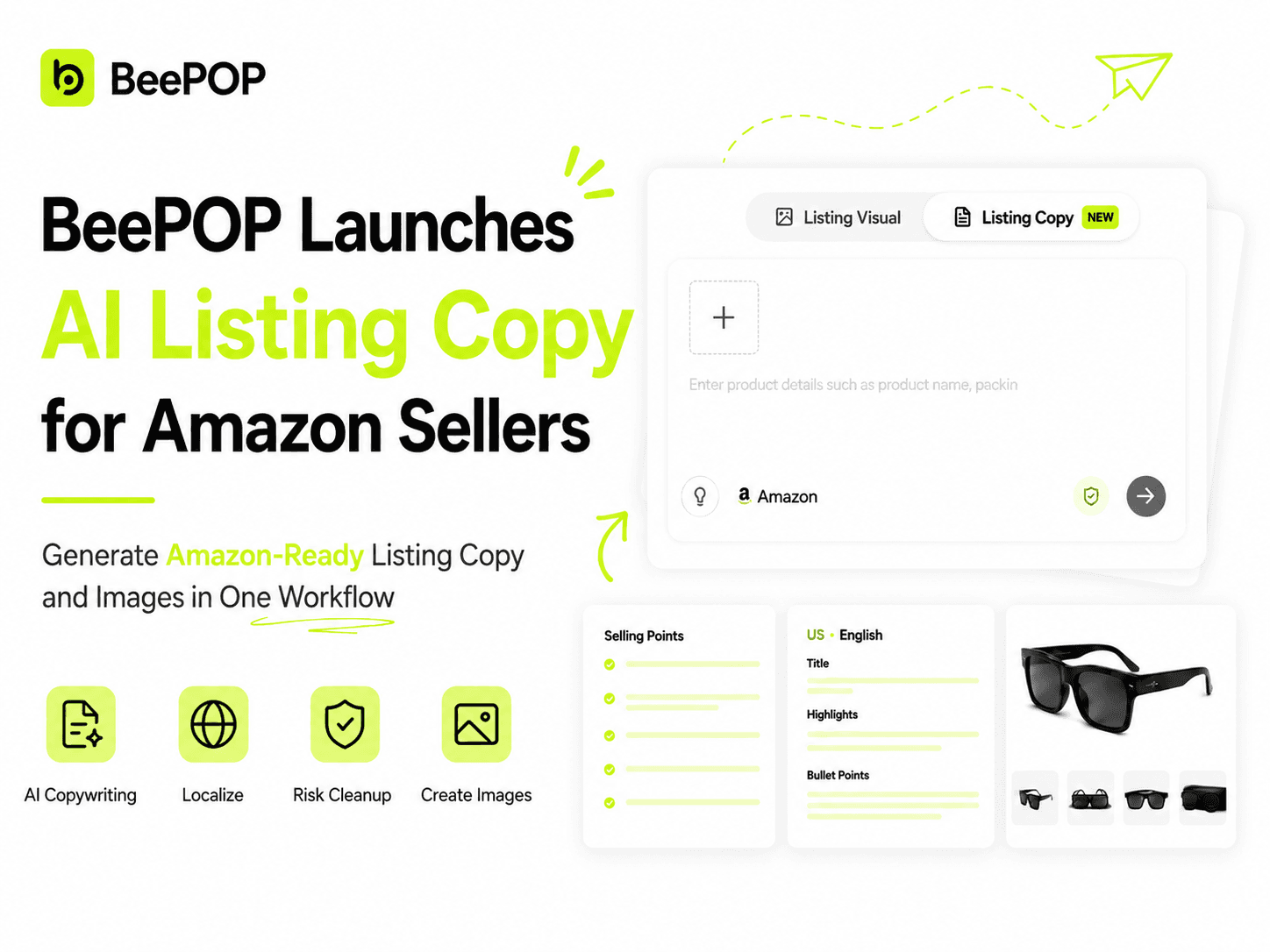
BeePOP has launched AI Listing Copy, helping Amazon sellers generate product copy and images in one connected workflow. It turns product information into listing-ready content—including titles, highlights, bullet points, search terms, and specifications—that can be used directly for Amazon listings.
From copy generation to image creation, BeePOP helps streamline the path from product information to store-ready content.
Start using AI Listing Copy: https://app.beepop.ai/
1. Before You Start
To get better results, prepare the following:
- Product details: product name, packaging, materials, size, color, etc.
- Key features: design, functions, use cases, target audience, etc.
- Product images (optional): up to 10 images, including the main product, details, packaging, and usage scenes
Tip: The more complete the product information, the more accurate the AI output. Text is required; images are optional.
2. Create Listing Copy
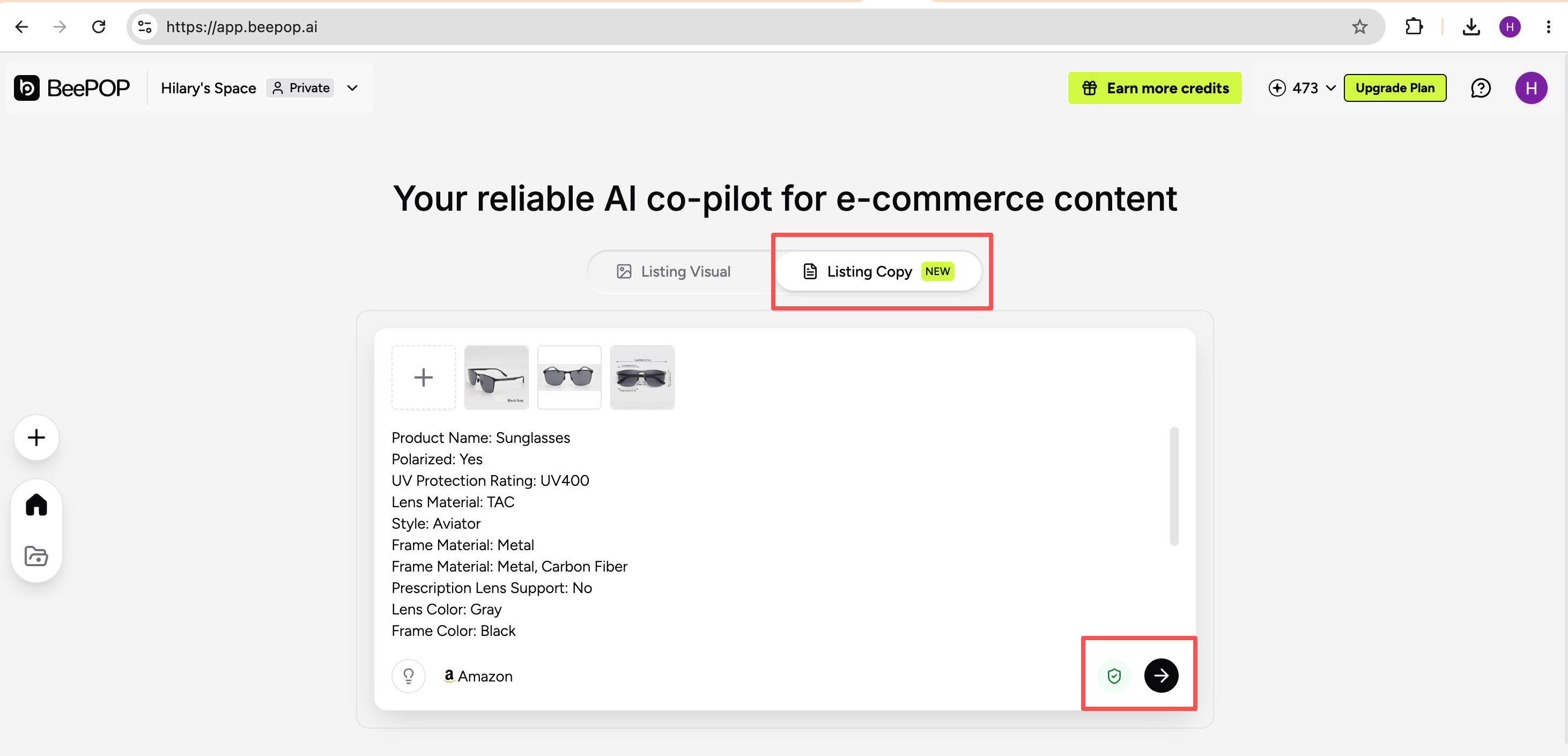
2.1 Log in to BeePOP (https://app.beepop.ai/) and click Listing Copy.
2.2 Enter your product information in the text field.
2.3 If needed, upload up to 10 product images.
2.4 Set Risk Cleanup:
- When enabled, the system checks for trademark and compliance risks after generation
- When disabled, the initial copy is generated without cleanup
2.5 Start generating the copy.
3. Wait for AI Analysis and Generation
After you submit, the panel will show the process in order:
- Analyze Product: Review product details, design, functions, and use cases.
- Research Competitors & Keywords: Find relevant SEO keywords and similar products.
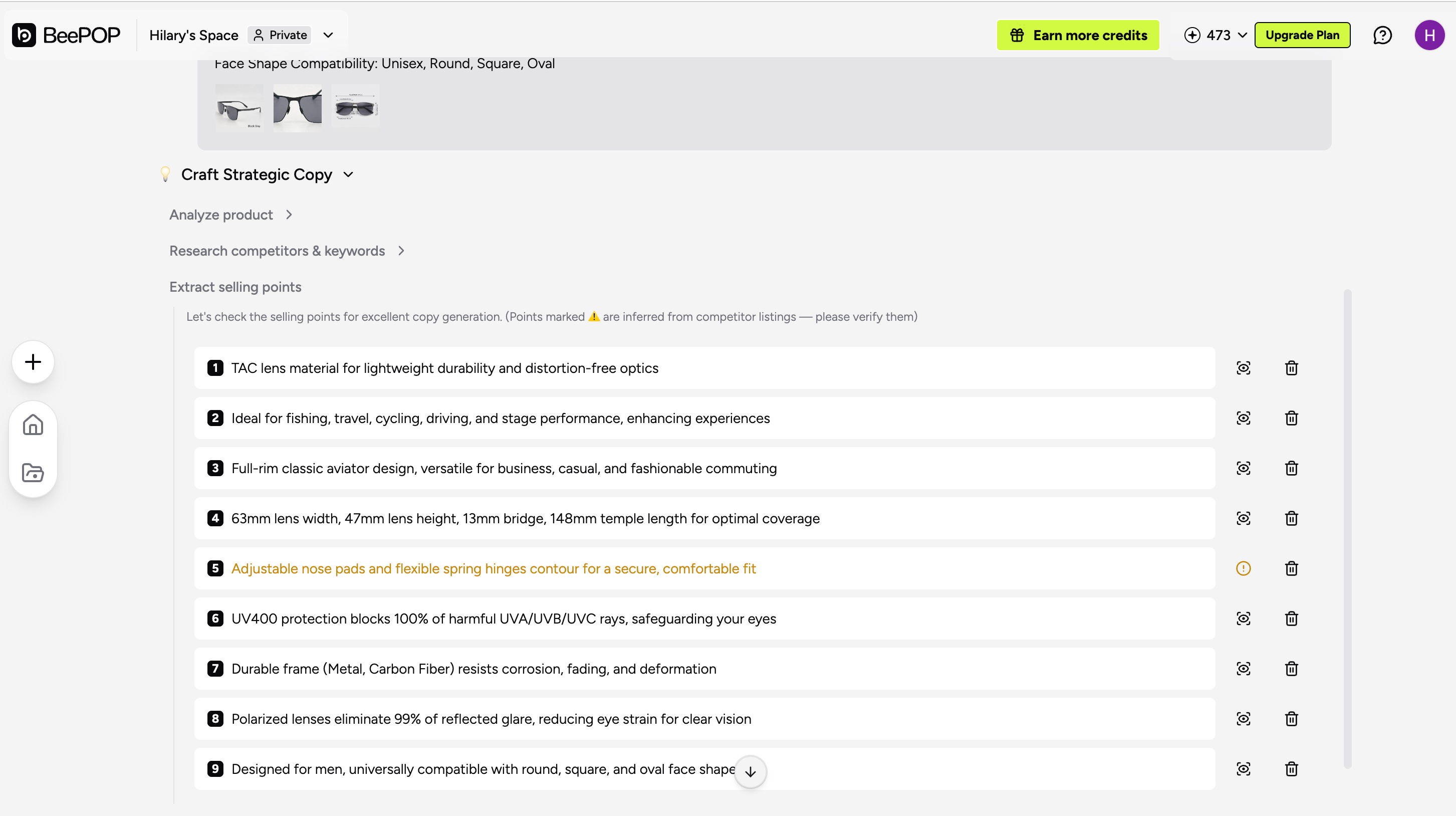
- Extract Selling Points: Identify key selling points for your review.
- Write Listing Copy: Generate the title, highlights, and bullet points.
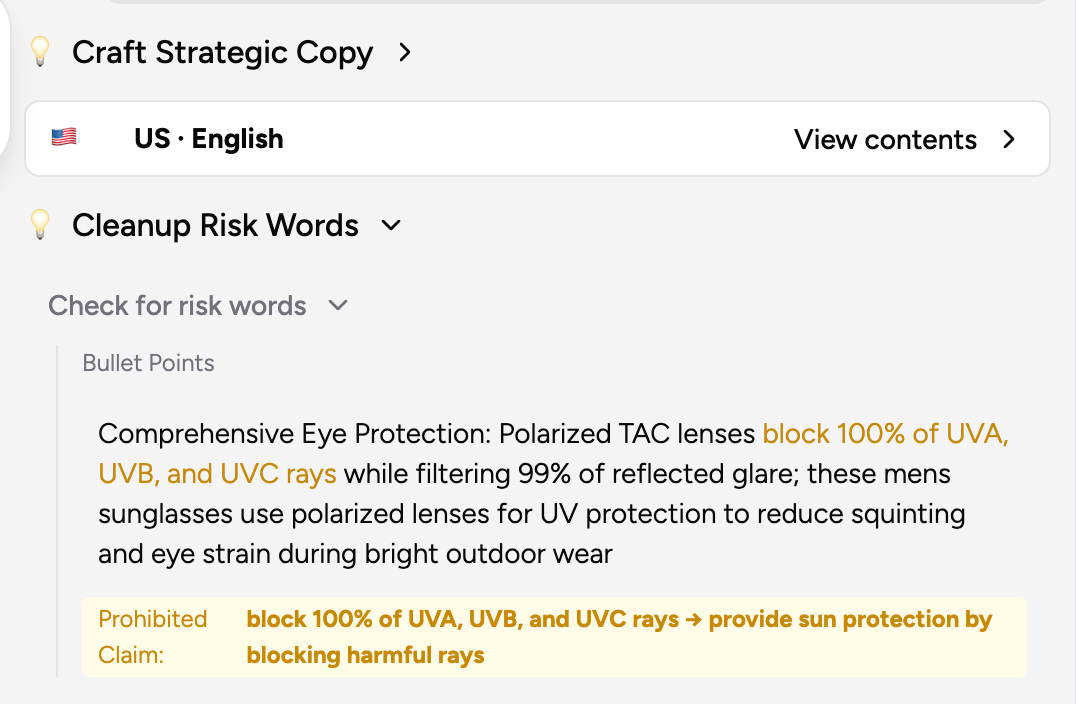
- Cleanup Risk Words: If enabled, check and refine risky content.
4. Confirm Selling Points
After AI extracts the selling points, review and confirm them before generating the copy.
Review the suggestions
- Primary selling points appear in the confirmation list
- Other suggestions appear in the backup list
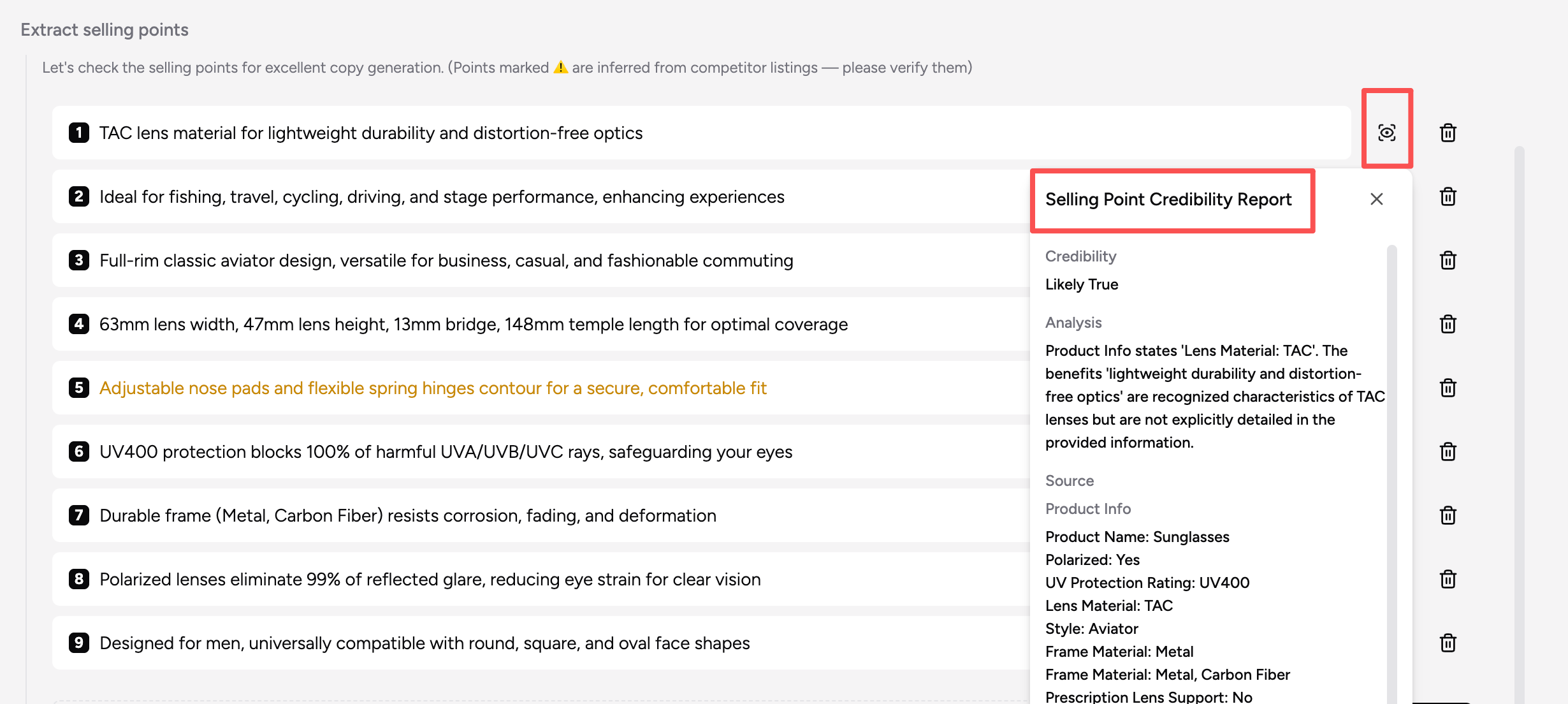
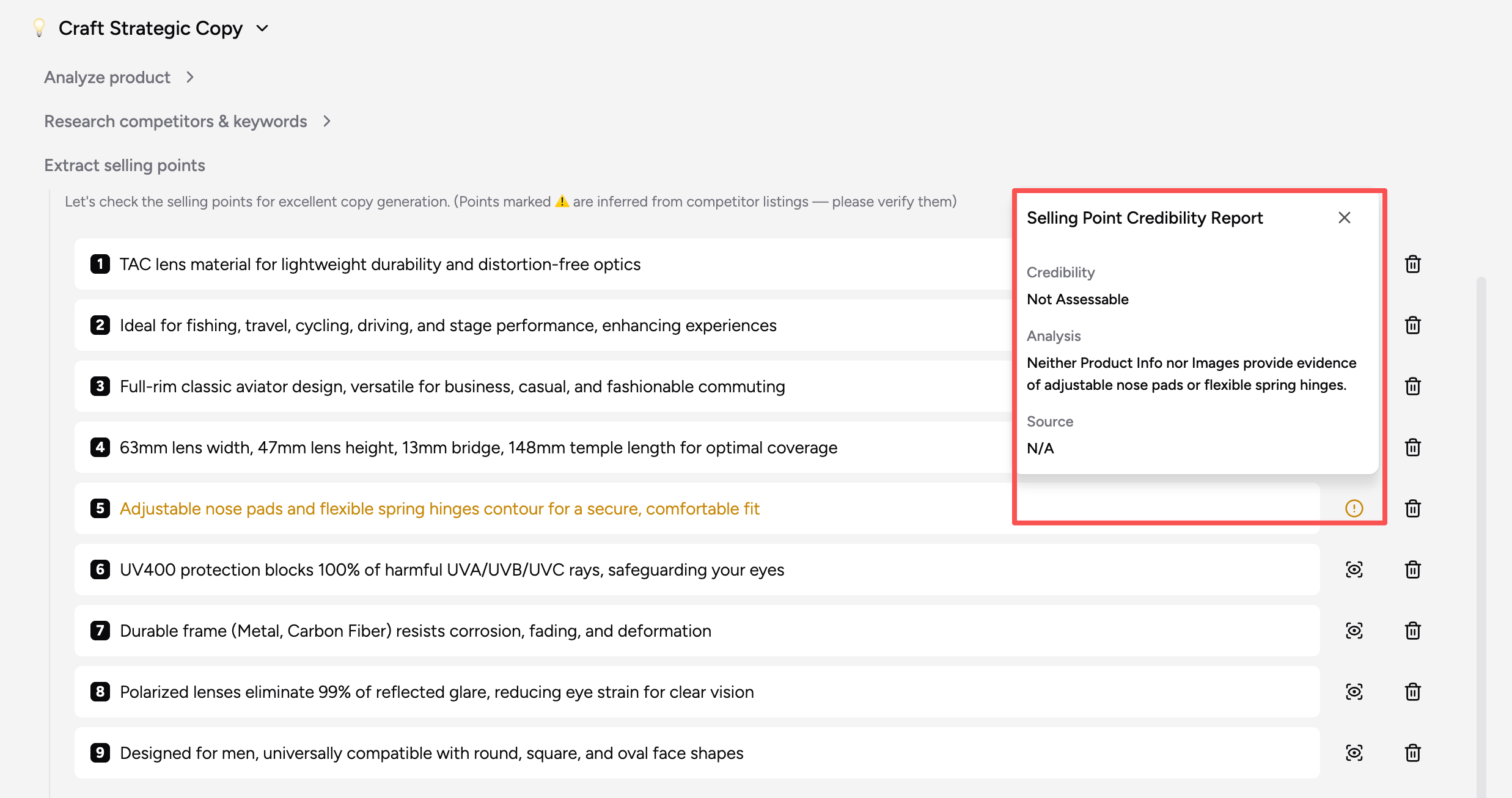
- Selling points marked with ⚠️ have lower confidence or could not be verified
- Click the confidence icon to view:
- Credibility: confidence result
- Analysis: reasoning
- Evidence: source data such as product text or uploaded images
Edit the selling points
- Click any selling point to edit it
- Replace content with suggestions from the backup list
- Hover over a selling point to delete it
- Click Add a selling point to add a custom one when there are fewer than 10
Confirm
- Keep at least 2 and up to 10 selling points
- The Continue button is disabled if fewer than 2 remain
- Click Continue to generate the listing copy
Note: For any selling point with a warning label, check it against the product, packaging, or specifications before confirming.
5. View and Edit Results
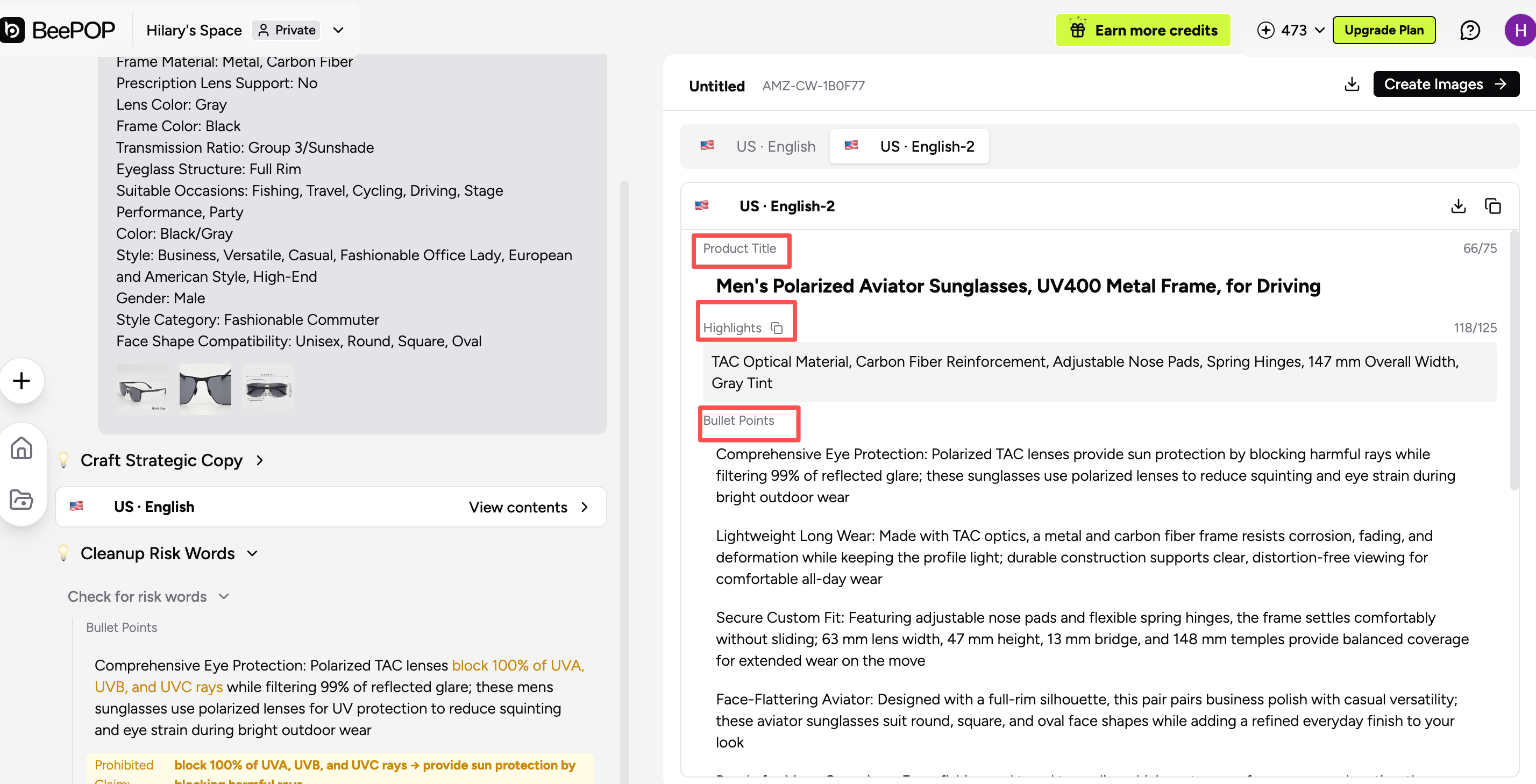
Each generation creates a separate copy version, labeled by Locale + version number, such as US•English and US•English-2.
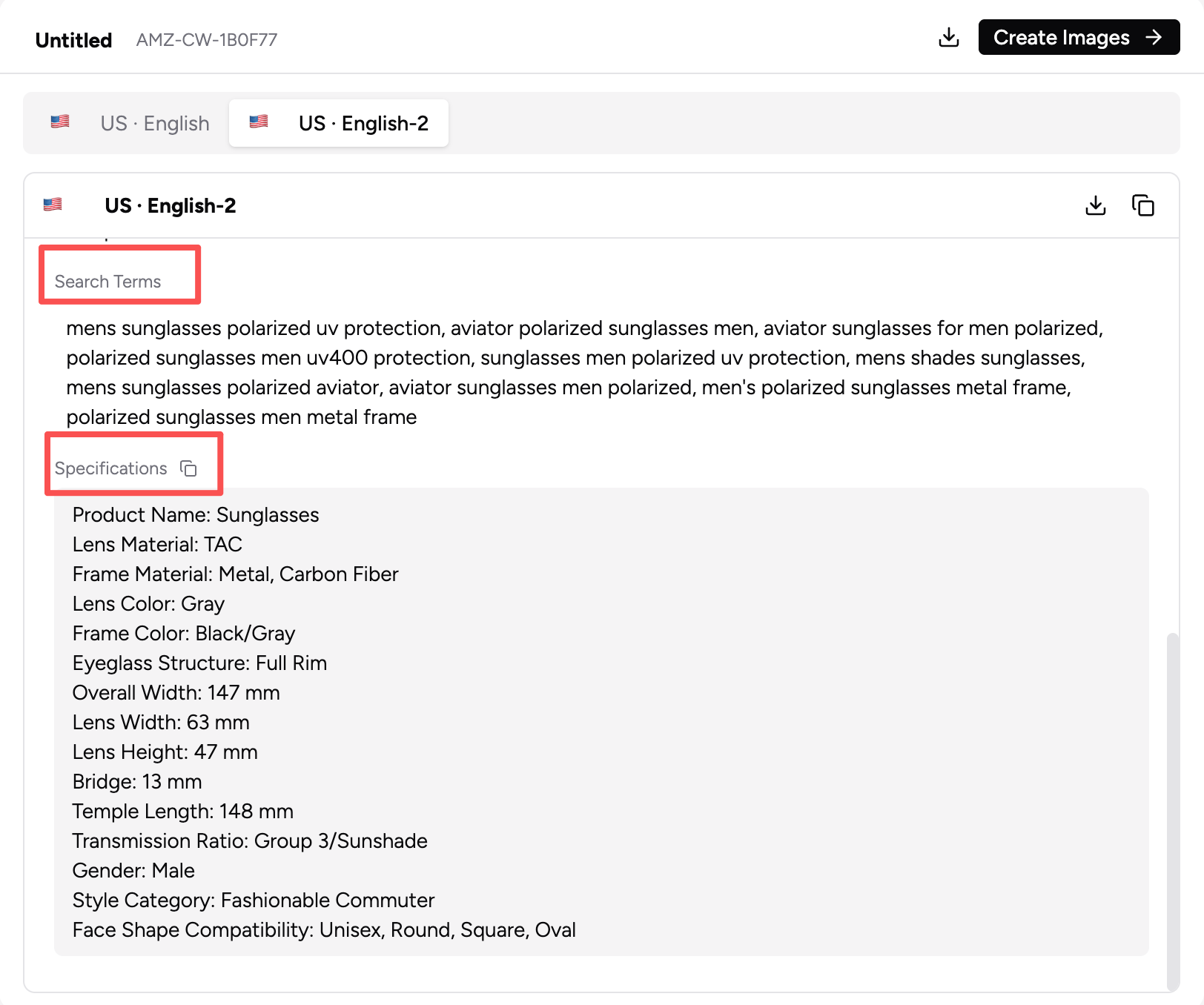
Fields included
- Title: product title, with current character count and a 75-character reference limit
- Highlights: key selling points, with current character count and a 125-character reference limit
- Bullet Points: five bullet descriptions
- Search Terms: keywords for search
- Specifications: product details
When a field reaches the reference limit, the number turns red.
Common actions
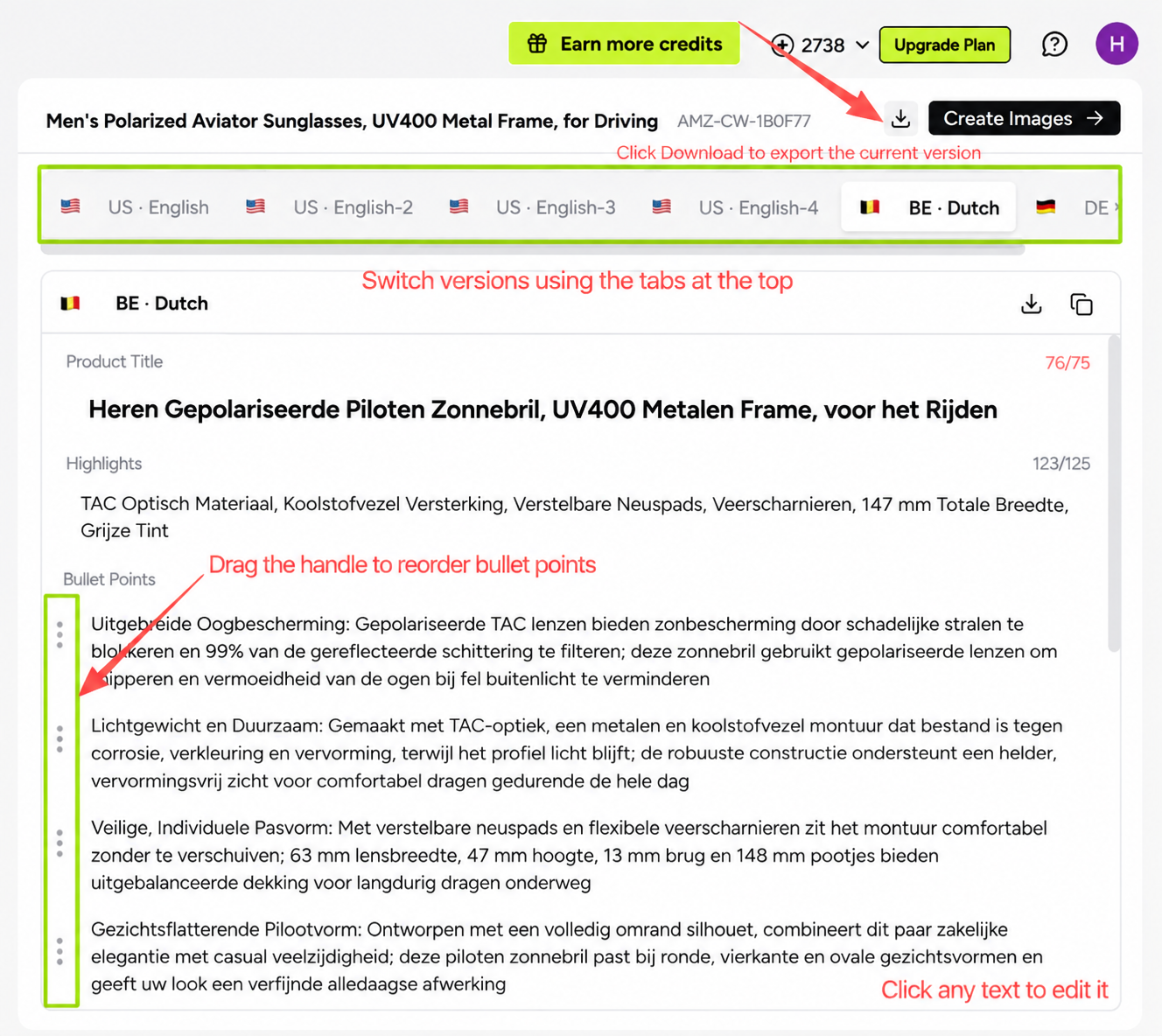
- Click any text to edit it
- Hover over a field and click the copy icon to copy one field
- Click Copy at the top of the version to copy the full copy set
- Drag the handle to reorder bullet points
- Switch versions using the tabs at the top
- Click Download to export the current version
6. Refine the Copy
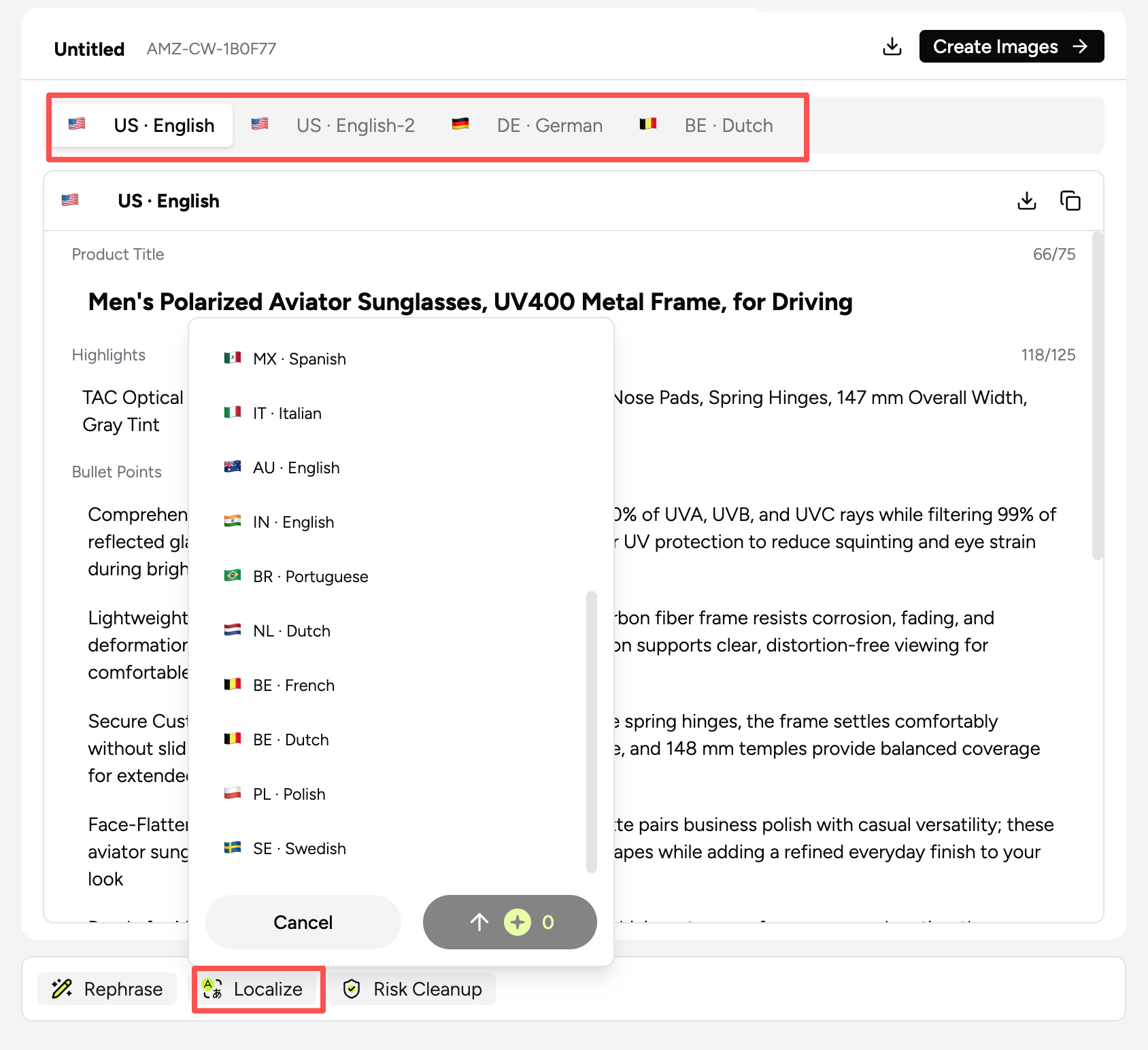
Use the actions at the bottom of the page. Each action creates a new version and keeps the original intact.
Localize
- Convert the copy for other marketplaces or regions.
- Select one or more target locales and click Confirm.
- The system generates a version for each locale.
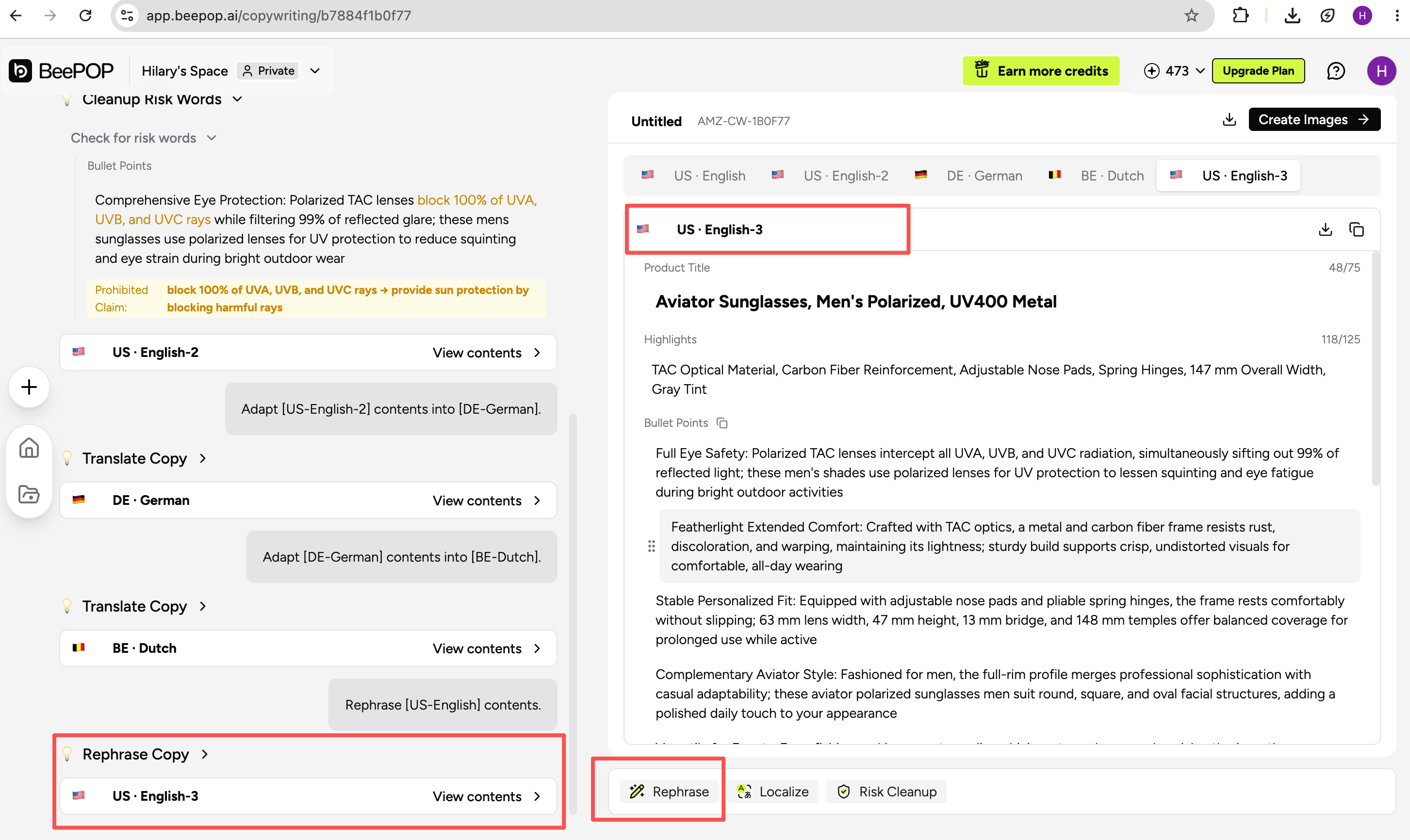
Rephrase
- Rewrite the selected version for another store or listing.
- Keep the product facts, but generate a new Title, Highlights, and Bullet Points.
- A new version with the same locale will be created.
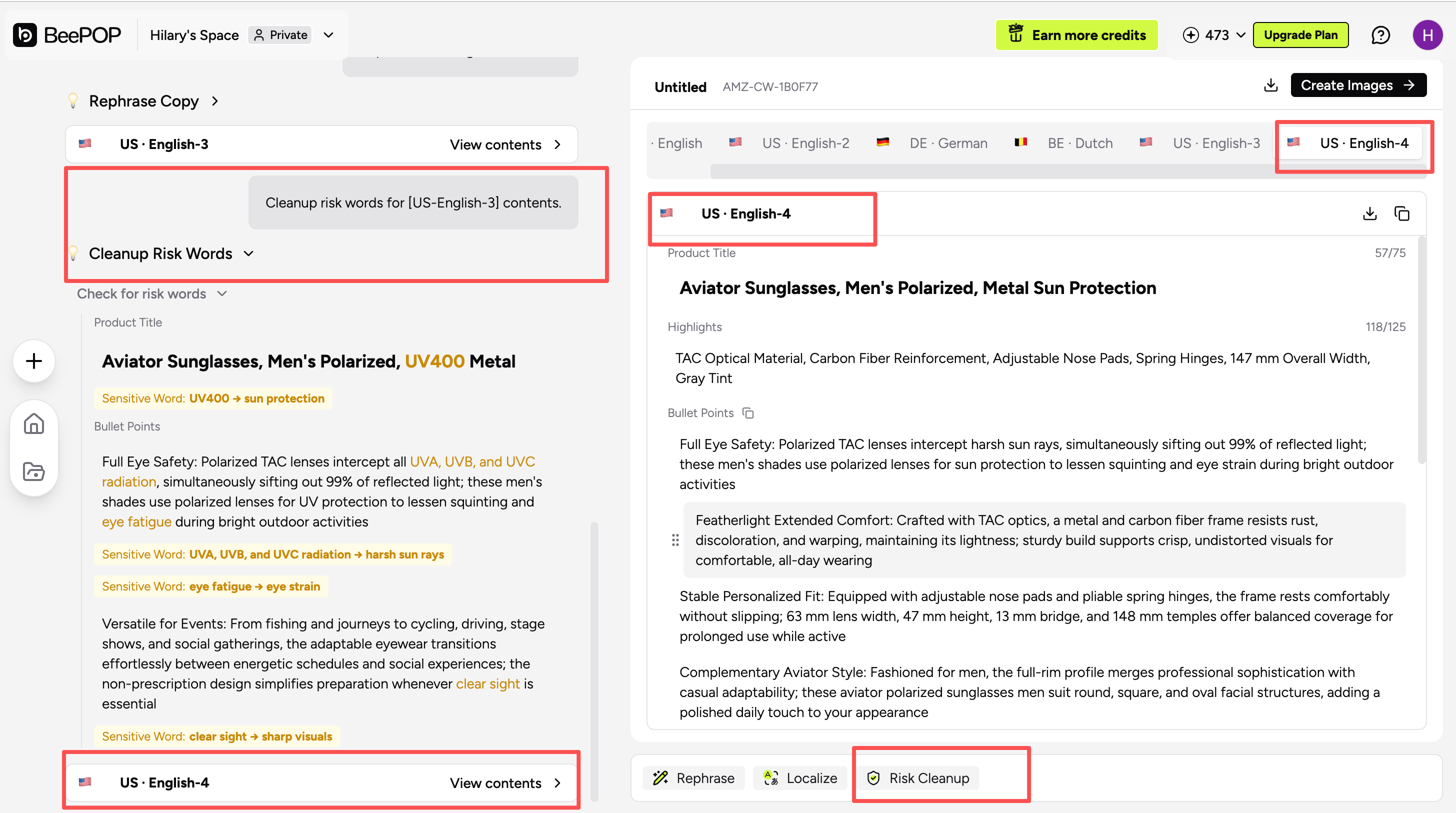
Risk Cleanup
- Available for English locales only.
- Check for trademark, banned, or risky wording.
- The system generates an optimized version and shows the changes on the left.
Note: If no obvious risk is found, the system will confirm that no changes are needed.
AI Refine and Bilingual View are not available in the current version.
7. Download Listing Copy
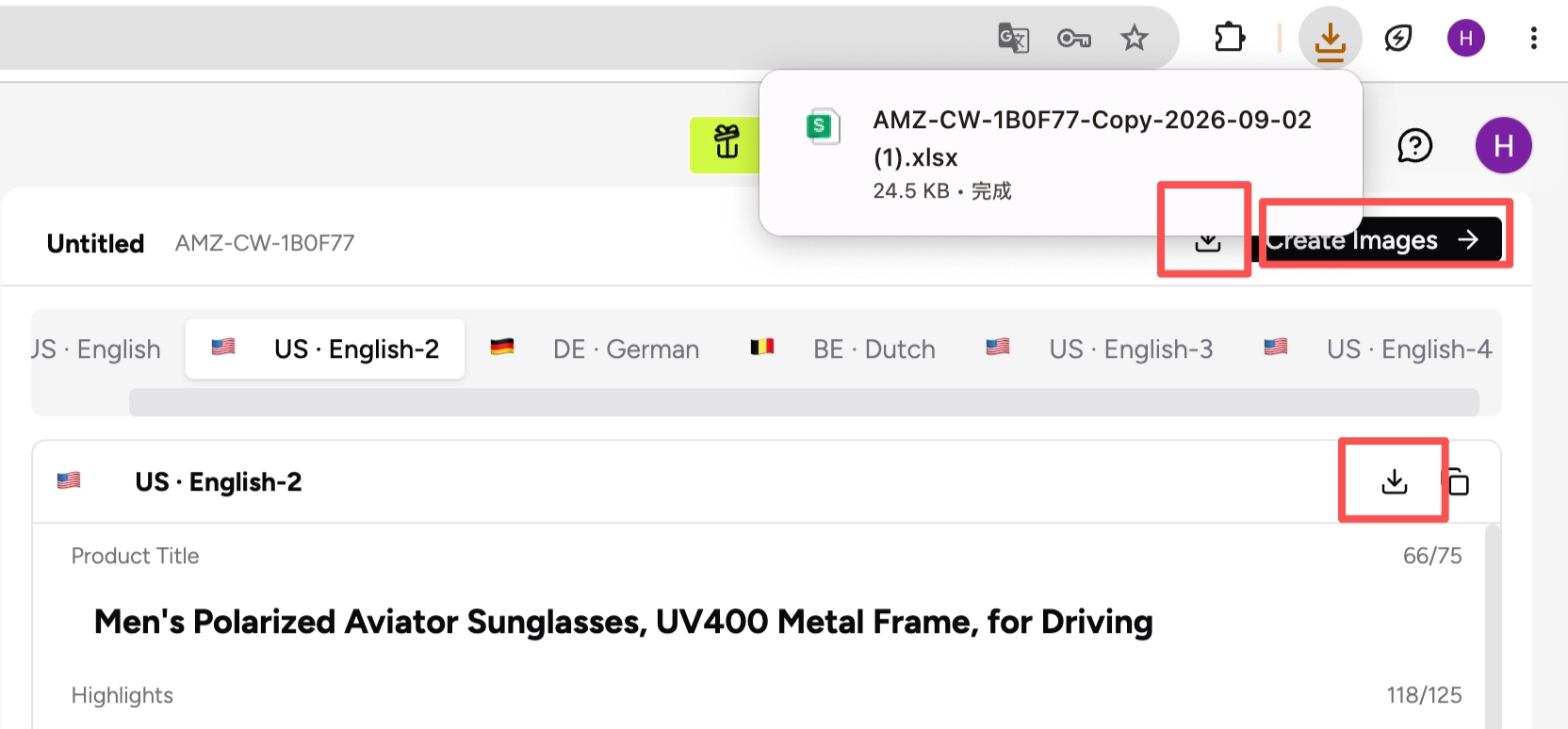
Download
- Click Download at the top of the page to export all copy versions for the asset
- Click Download on a single version to export only that version
- The file is exported as Excel, with one version per row
- Example file name:
AMZ-000001-Copy-2026-07-30
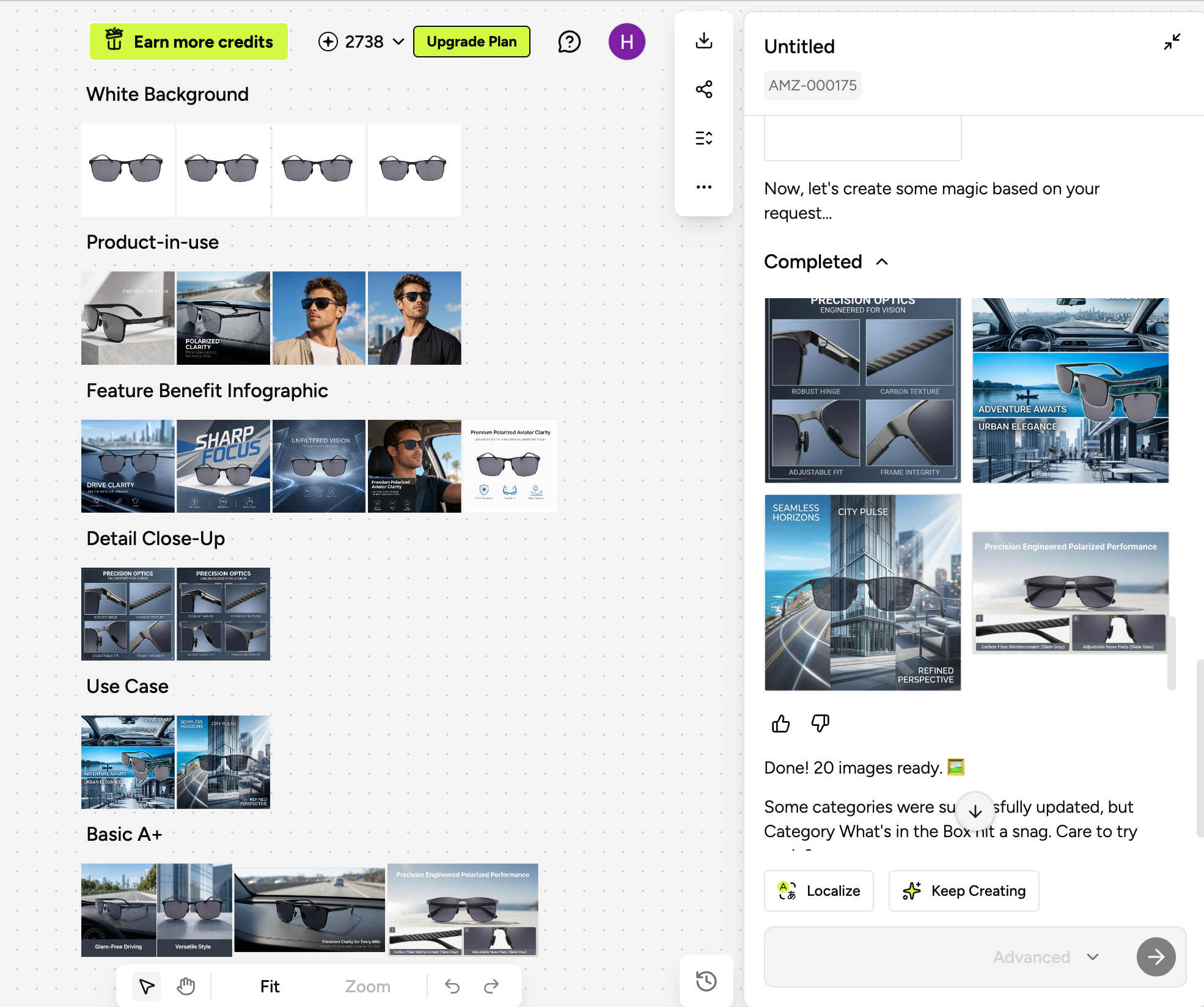
8. Create Images
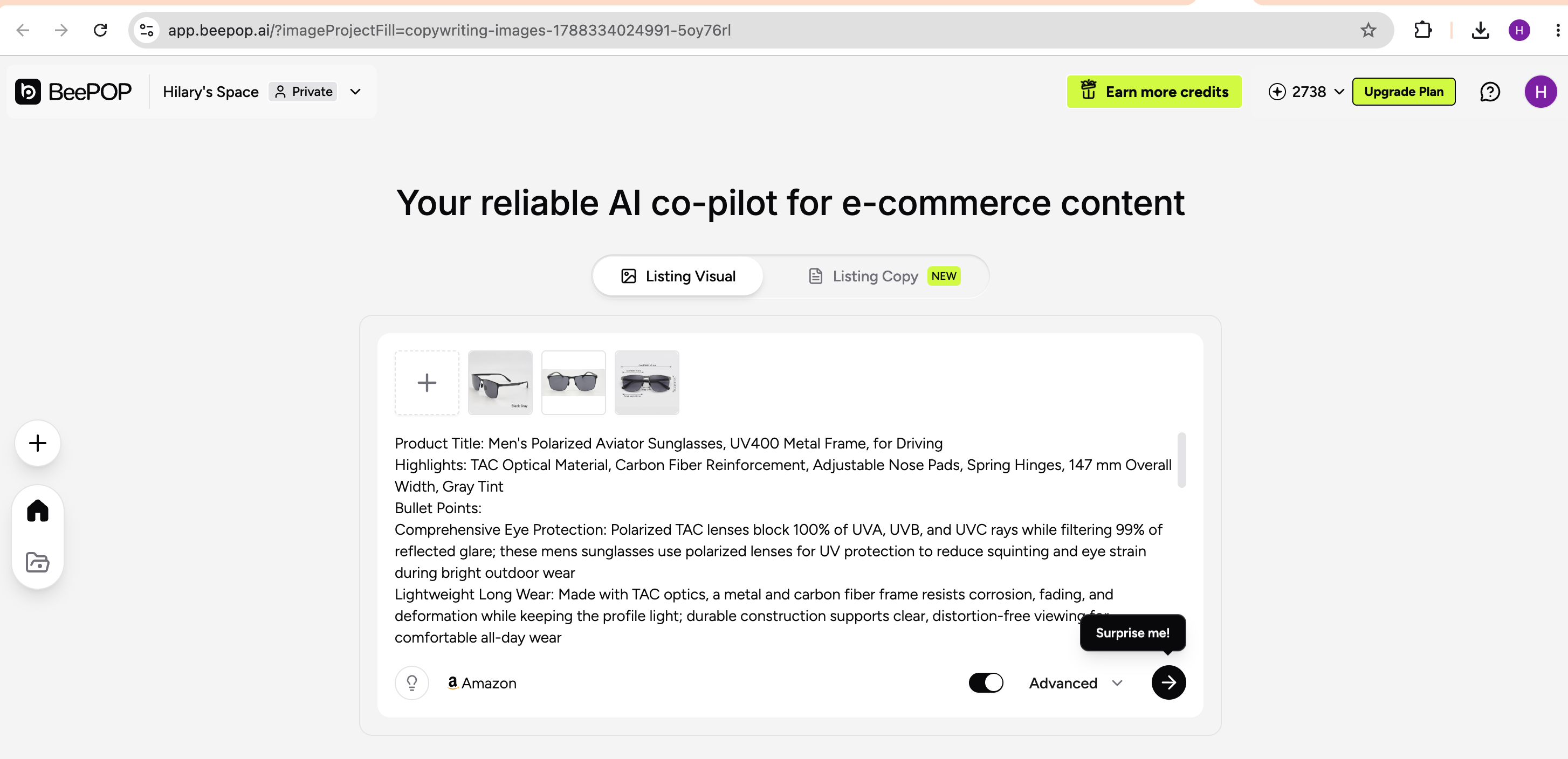
- Click Create Images to open a new image asset in a new tab
- The system automatically carries over the first English version, uploaded product images, and the same SKU
9. Queue Rules
- Copy and image tasks count toward concurrency separately
- Only one extra task can run at a time for the same copy asset
- Each asset can queue up to 5 extra tasks
- When the limit is reached,
Localize,Rephrase, andRisk Cleanupare temporarily unavailable - You can delete tasks or drag to reorder them in the queue
10. Error Handling
Sensitive content detected
- If uploaded content contains sensitive or non-compliant material, the process stops
- Remove the sensitive text or images and create the task again
Generation failed
- If a system error occurs, a retry button appears
- Click Retry to run the task again
Output needs improvement
- Check whether the original product information is complete and accurate
- Review any selling points with warning labels
- Edit the text fields directly
- Use Rephrase to generate a new version
11. Credits Rules
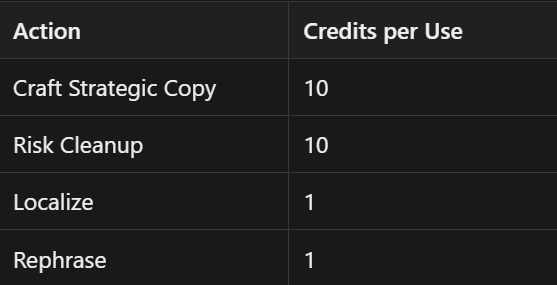
Credits are reserved when a task is submitted. If generation fails, the credits are returned. If you retry the task, the credits will be reserved again.
Build Amazon-Ready Listing Assets with BeePOP
AI Listing Copy helps Amazon sellers move from product information to listing-ready copy, then continue directly into image creation within the same workflow.
From copy to visuals, BeePOP helps turn a SKU into a more complete set of Amazon-ready listing assets with less manual work and fewer handoffs.
Log in to BeePOP and try AI Listing Copy today: https://app.beepop.ai/